Showing posts with label Tech2Win. Show all posts

2025/11/03

How to Solve VXDIAG GM Tech2Win E668150 Error?

Problem:

Failed to install vxdiag vcx nano gm 2025.03 Tech2win software on Windows 10 system.

GM T2W driver was installed. But failed to install T2W software.

Error: E668150 Tech2win is exiting with an error code-1 (parsing of program arguments failed).

VXDIAG GM Tech2Win E668150 Error 1

Solution:

Delete bin folder in C//ProgramFiles(x86)/General Motors/Tech2win folder.

Delect J234 Wrapper folder in C//ProgramFiles(x86)/General Motors folder.

Contact www.vxdiagshop.com to download new bin file.

Then replace new bin file in C//ProgramFiles(x86)/General Motors/Tech2win folder.

VXDIAG GM Tech2Win E668150 Error 2

VXDIAG GM Tech2Win E668150 Error 3

The problem is resolved.

VXDIAG GM Tech2Win E668150 Error 4

2025/07/07

VXDIAG Tech2win Not Allow to Run Solution

Problem:

The VXDIAG VCX NANO GM Tech2win software is not allowing me to run… here was my original message as well:
My GM module in VX Manager shows installed, but the “Run” button is disabled. Tech2Win gives “license expired” error.
My firmware is v1.9.4.2 and GM license shows Available, but clearly Tech2Win bridge is not activated.
How to fix it?

VXDIAG Tech2win Not Allow to Run 1

VXDIAG Tech2win Not Allow to Run 2

Solution:

1. Better install Tech2win on Win7 32bit system. Don’t install T2W on Home edition system.

2. Update firmware first, then update license.

3. Don’t start Tech2win from vx manager. Run software from patch.

2024/08/27

VXDIAG GM GDS2 and Tech2win AU Holden Car List

Here comes the Australian Holden vehicle list of VXDIAG VCX NANO GM or other VXDIAG VCX GM scanners (take 2024.05 version GDS2 as an example).


GDS2: supports 2010-2020 Holden vehicles 


2020 Holden
Acadia
Astra
Colorado
Commodore
Equinox
Spark
Trailblazer
Trax

VXDIAG GM GDS2 AU Holden Car List 1

2019
Acadia
Astra K
Astra Sedan NB4
Barina
Colorado
Commodore
Equinox
Spark
Trailblazer
Trax

VXDIAG GM GDS2 AU Holden Car List 2

2018
Astra J
Astra K
Astra Sedan NB4
Barina
Captiva
Cascada
Colorado
Commodore
Equinox
Spark
Trailblazer
Trax

VXDIAG GM GDS2 AU Holden Car List 3
2017
Astra J
Astra K
Astra Sedan NB4
Barina
Caprice
Captiva
Cascada
Colorado
Commodore
Insignia
Spark
Trailblazer
Trax

VXDIAG GM GDS2 AU Holden Car List 4
2016
Astra J
Barina
Caprice
Captiva
Cascada
Colorado
Colorado 7
Commodore
Cruze
Insignia
Spark
Trax

VXDIAG GM GDS2 AU Holden Car List 5

2015
Astra J
Barina
Barina Spark
Caprice
Captiva 5
Captiva 7
Cascada
Colorado
Colorado 7
Commodore
Cruze
Insignia
Malibu
Trax
Volt

VXDIAG GM GDS2 AU Holden Car List 6

2014
Barina
Barina Spark
Caprice
Captiva 5
Captiva 7
Colorado
Colorado 7
Commodore
Cruze
Malibu
Trax
Volt

VXDIAG GM GDS2 AU Holden Car List 7
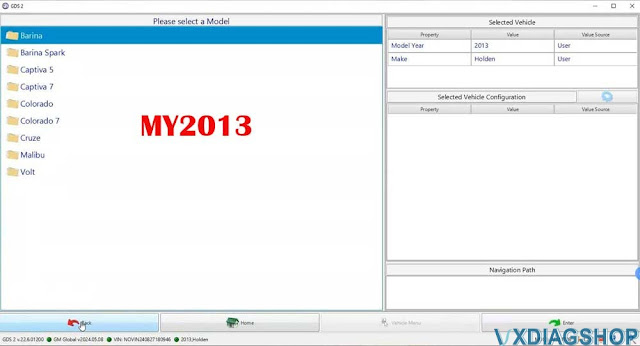
2013
Barina
Barina Spark
Caprice
Captiva 5
Captiva 7
Colorado
Colorado 7
Cruze
Malibu
Trax
Volt
VXDIAG GM GDS2 AU Holden Car List 8

2012
Barina
Barina Spark
Captiva 5
Captiva 7
Colorado
Cruze

VXDIAG GM GDS2 AU Holden Car List 9

2011
Barina Spark
Captiva 5
Captiva 7
Colorado
Cruze

2010
Barina Spark
Cruze


Tech2win: 1999-2013 Holden models

2005-2013 Caprice/Lumina
2003-2004 Lumina/Utility/Statesman/Caprice
2001-2002 Lumina LHD/Caprice LHD/Lumina RHD/ Statesman RHD/Utility RHD
2000 Middle East Export Lumina/Caprice
1999 Middle East Export Lumina


Select Holden Export package

VXDIAG GM tech2win AU Holden Car List 1

VXDIAG GM tech2win AU Holden Car List 2

VXDIAG GM tech2win AU Holden Car List 3

VXDIAG GM tech2win AU Holden Car List 4

VXDIAG GM tech2win AU Holden Car List 5

VXDIAG GM tech2win AU Holden Car List 6

www.vxdiagshop.com

2024/06/03

VXDIAG Tech2win Techline Connect License Error Solution

Problem:

I could not get the VXDIAG VCX Nano GM to program RPOs in the BCM via Tech2Win as well as perform the VATS relearn via Techline Connect. Techline connect throws a license error.


Solution 1:

Turns out, Techline Connect installs its own version of Tech2Win that throws a license error if using with the VCX Nano. In essence, you can only have one installed at a time.

I wiped my tuning laptop cleaned and installed VX Manager plus the associated GM Software. Then, I was able to use Tech2Win to program the BCM and perform other diagnostic functions.

After which, I logged into Techline Connect and performed all of the updates. This allowed me to add my Z06’s VIN and perform the VATS relearn.

I then had to wipe the laptop and install VX Manager + GM Software to be able to continue to use Tech2Win.

The above accomplished what I needed.


Optional solution 2:

Using Virtual box.

Run multiple installs of windows on a virtualization platform (for example VirtualBox on Ubuntu Linux). You can have dozens of windows “installs” on one machine and simply boot whichever you’re in need of for the task at hand. Create one “clean” base install and then clone it for various “licensing scenarios”. You should look into it.


All the GM interfaces present themselves as network interface devices, because the licenses (lets call them what they really are: subscriptions) they hold are expired by the time kept on the VDI device’s RTC. This is another protection scheme – if the interface can sync it’s internal clock to the internet it’s harder to get around their license expiration.


Option solution 3:

 Install VXDIAG GM GDS2 T2W & Techline Connect on the Same PC?

2024/05/10

VXDIAG Tech2win E668616 License Has Expired Solution

Here is the working solution to vxdiag vcx nano gm tech2win E668616 license has expired error.


Error image attached:

VXDIAG Tech2win E668616 License Has Expired

VXDIAGSHOP Working Solution:

Copy and replace emulator.exe file under the installation directory.

Installation directory->>Right click tech2win desktop icon, go to property and search for the directory.

VXDIAG Tech2win E668616 License Has Expired solution

It should be fine.

2024/03/26

VXDIAG Tech2win No Connection on Surface Pro Win10?

Problem:

I tried to install vxdiag vcx nano gm software on three of my Surface Pro 2017 models (Windows 10 Pro 32bit) Everything would work except the Tech2win software. CANDI not connected. Not matter what I tried. When launching Tech2 the popup to choose connection to the MDI wasn’t appearing. I looked everywhere for the usb drivers with no luck.

VXDIAG Tech2win No Connection on Surface Pro

Possible reason and solution:

The issue with the Surface is they all have a usb-c port…and only 1 port and the tech2win software when it loads it also loads a usb driver.

The driver with the tech2win software is not compatible with the surface drivers. Some users have even tried to load different drivers in the surface in the usb port with no luck. But the surface will load and run GDS without issue. It even see’s the vcx nano in the gds software.


Some very old software like Tech2Win also has to be happy with the emulated serial port, the Windows version must allow proper control of the emulated hardware to the old program, etc. A lot of little factors that can make these things painful. Part of the reason you will still keep an older laptop that has a real serial port (and runs Windows 7, tech2win prefer 32bit).


User report:

I got it to work with another laptop running Windows 10 Pro.
I think the problem is that the Surface Pro runs a usb 3.0 port and the other laptop has a 2.0 port. So if you only have a 3.0 port you may run into issues. A possible workaround would be a usb port splitter that supports usb 2.0.


www.vxdiagshop.com