Showing posts with label VXDIAG VCX NANO 5054. Show all posts

2020/03/30

How to Install VXDIAG 5054 and VAS5054 ODIS on Win7?

How-to: set up ODIS software for both vxdiag vcx nano 5054 and vas 5054a interface.

What is ODIS
ODIS stands for “Offboard Diagnostic Information System” – basically the tool VAG dealerships use to perform diagnostics, and flashing. There are two versions of ODIS, one is called ODIS-S (“Service” aka Diagnostic Tool), and the other is called ODIS-E (“Engineering” aka Diagnostic, Flashing and more”). ODIS-E functions more like VCDS.
Pre-Requisites:
* A Laptop with Windows 7 (64-bit Preferred) – 32-bit works as well with the latest updates / patches from MS
* A VAS5054a clone
Caveats:
Offline mode only, in order to connect to ODIS-Online – you need an account.
I used both this VXDIAG VCX Nano 5054 ODIS and VAS5054a clone. The VCXDiag Nano requires VXManager which installs a specific “PDU connector” for ODIS support, the VAS5054a works with the Softing driver installed out of the box by ODIS installer.
The ODIS-S (S stands for Service – the diagnostic tool) I used is version 4.3.3, and the ODIS-E (E stands for Engineering – more features) I used is version 8.1.3.
Installation went as follows
ODIS-E = ODIS Engineering 8.1.3
ODIS-S = ODIS Service (Diagnostics) 4.3.3
Patches = Softing patches (in case your interface doesn’t work with the version included with 4.3.3)
AllScanner = VX Manager (only required for VXDIAG VCX NANO interface)
[PRE-REQUISITES]
Windows 7 OS – 64-bit with the latest patches from Microsoft
[INSTALLATION-INSTRUCTIONS]
* ODIS-S – Service/Diagnostics (version 4.3.3)
1.1 Navigate to the folder “ODIS-S\1_Installer” then execute “OffboardDiagSetup-Service_VWMCD_4_3_3-B43_3_1_2.exe”
Note: when the installer runs, looks like the text is garbled but you’ll be able to select “English (US)”
1.2 Target Platform should be set to “Standard PC/notebook”
1.3 Diagnostic Interface should be set to “VAS 5054”
1.4 When asked for a “License File” point it to “ODIS-S\2_License_Launcher\license.dat”, make sure [x] Copy license into the installation folder is checked.
1.5 After installation completes, copy the file “ODIS-2\2_License_Launcher\OffboardDiagLauncher.exe” -> “C:\Program Files (x86)\Offboard_Diagnostic_Information_System_Servi ce”
1.6 Execute ODIS-S via the start menu or the shortcut in your desktop as “Run as administrator”
1.7 During first startup, the PostSetup dialog will pop up, “Select local directory” and point it to “ODIS-S\3_PostSetup”, hit OK
1.8 Click on the “Right Arrow” icon no the screen, and select “English (US) (en_US)” then click on the “Right Arrow” icon again.
1.9 It should state that update “51.0.670” is available, click on the “Right Arrow” icon to install the update.
* Softing – Update 
1.1 If you have a good VAS5054a clone, copy the file “Patches\pdu_api_root.xml” to “C:\ProgramData\PDU-API” otherwise continue to the next step.
1.2 Merge the folder\files enclosed in the zip file “Patches\ENABLE_CLONE_SOFTING.zip” to “C:\Program Files (x86)\Softing”
Note: you need to merge the files and overwrite, not delete and rename the Softing folder.
* AllScanner – VX Manager (USB Interface) only required if you are using a VXDiag VCX Nano 5054
1.1 Navigate to the folder “AllScanner” then execute the file “VX Manager 1.4.2.0927.exe”
1.2 When the installer prompts for “Select Components” check both
[x] 1 – PASSTHRU
[x] 10 – VW
1.3 After installation, Plugin USB Cable to computer
1.4 Launch VX Manager
1.5 The Device should be detected as a VCX-NANO, click on the “Diagnostic Icon” then the “Automotive” tab on the left
1.6 Click on “VW ODIS” then hit “Install”
1.7 After it’s installed, you should be able to Run “VW ODIS” from the “My Apps” tab.
* ODIS-E – Engineering (version 8.1.3)
Notes: the installation of ODIS-E is similar to ODIS-S – you start with the installer “ODIS-E\1_Installer\OffboardDiagSetup-Engineering_8_1_3-B81_3_0_1.exe”,
selecting the “ODIS-E\2_License_Launcher\license.dat” for the license. After the installation is complete, overwrite the “OffboardDiagLaunch.exe” in
“C:\Program Files (x86)\Offboard_Diagnostic_Information_System_Engin eering” with “ODIS-E\2_License_Launcher\OffboardDiagLaunch.exe”. Then
run as “administrator” ODIS-E pointing PostSetup to “ODIS-E\3_PostSetup”. After PostSetup is complete, execute “ODIS-E\4_Diag_Module\ODIS-DIAG-MODULES-ENGIN.exe”
which will extract its contents to Drive C.

Here’s what ODIS-S and ODIS-E looks like after installation
install-vxdiag-5054-odis-win7-1

install-vxdiag-5054-odis-win7-2

install-vxdiag-5054-odis-win7-3

install-vxdiag-5054-odis-win7-4

install-vxdiag-5054-odis-win7-5

2020/03/13

VXDIAG VW ODIS Cannot Read VIN for Old Cars Solution

Problem:
I have a big problem, my Vxdiag vcx nano 5054 with odis software works only on newer cars but cannot read ignition or VIN on old cars. What can i do?


Vxdiagshop.com engineer solution:
Update the VW ODIS driver to latest version, shown picture below:
vxdiag-vw-odis-cannot-read-vin-for-old-cars
Feedback:
I think I’ve fixed it by installing previous version of softing driver. It reads the VIN and can connect to the car.

2019/11/22

VAS6154 Works with ODIS-S and ODIS-E, Confirmed!

VAS6154 and ODIS software customer feedback today:

Question:
VAS6154 are working fine in Odis Service, but Engineering cant see the VAS - You have a solution?

Solution:
vas6154 works with both ODIS-S (ODIS-Service) and ODIS-E (ODIS-Engineering).
Uninstall and install again did the job.
Just the driver then everything works.
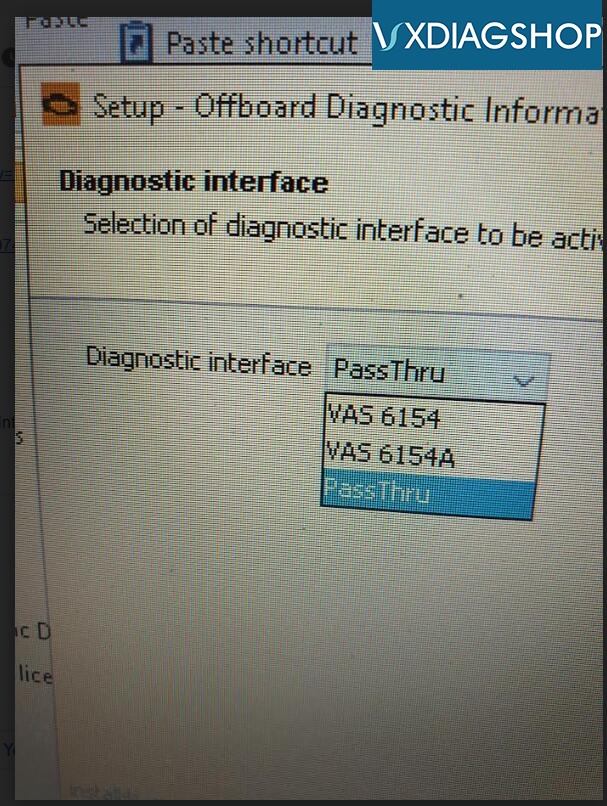
*Select diagnostic interface as VAS 6154.
Vas6154

Note: VAS 6154 uses vxdiag solution. Both vas6154 and vxdiag vcx nano 5054 supports WiFi connection.

If you are interested in vas 6154 diagnostic interface, please contact us
Email: sales@vxdiagshop.com
Skype: vxdiag.com
Whatsapp: 0086-18064450969

2019/11/01

The Advantages of VXDIAG VCX NANO 5054, VAS6154 and VAS5054A

VAG diagnostic tool VXDIAG VCX NANO 5054, vas 6154, vas 5054a which is better to choose?

VAS 6154 wins in:
– use VXDIAG solution, require VX Manager driver
– BEST firmware design & quality
– NEWEST software ODIS 5.1.5
– WIFI connection
(connection via WiFi is more stable than that via Bluetooth)
– BEST for flashing

VXDIAG VCX NANO 5054 wins in
– WIFI connection
– the best price (€20+ than others)
–NEWEST software ODIS 5.1.5
–Software update by Link
–compatible with original ODIS

VAS 5054A clone wins in
– NEWEST software ODIS
– Remote programming
– FULLY support VAG vehicles

2019/10/14

(Solved!) VXDIAG VCX NANO 5054 ODIS Not Recognize Ignition

Problem:
Ordered a vxdiag vcx nano 5054 Diaghead from you. Use odis 5.13 on windows 7.
From time to time, the diaghead does not recognize ignition correctly for few seconds and cuts out. I tested it on a Audi A3 year 2014
Tried a VAS6054 clone on the same machine and it works without issues.
I got the firmware updated and tested higher version odis 5.1.5. Still same problem.
vxdiag-vas-5054-audi

Final solution:
The the problem is the actual/ last driver!!
Driver-info
I deleted VXmanager and then installed the version from your website again but did not install the latest update v3.0.8.826.
Now it runs stable and is not cutting out anymore.
However on the older release, it does not recognize ignition status (on/off).
I guess this is one of the changes you made with v3.0.8.826.
The problem will be solved in the near feature.
Hope it helps.

www.vxdiagshop.com

2019/07/29

How to Register VXDIAG Full VW ODIS Software (2TB HDD)

Q: I have got the VXDIAG Full brands with 2TB software HDD. How can I register the ODIS 5.1.3 software?
A:
VXDIAG full ODIS software is well installed in 2TB HDD.  But require to register (each brands) and change language before using.  Follow steps below to register VXDIAG ODIS:

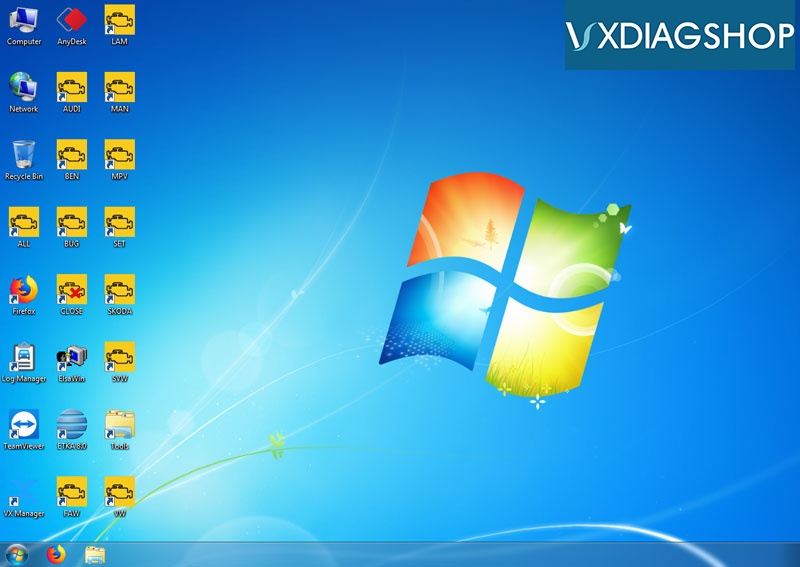
After insert 2TB HDD and choose ODIS software,  main software for various models will be displayed on desktop.
vxdiag-vag-odis-1
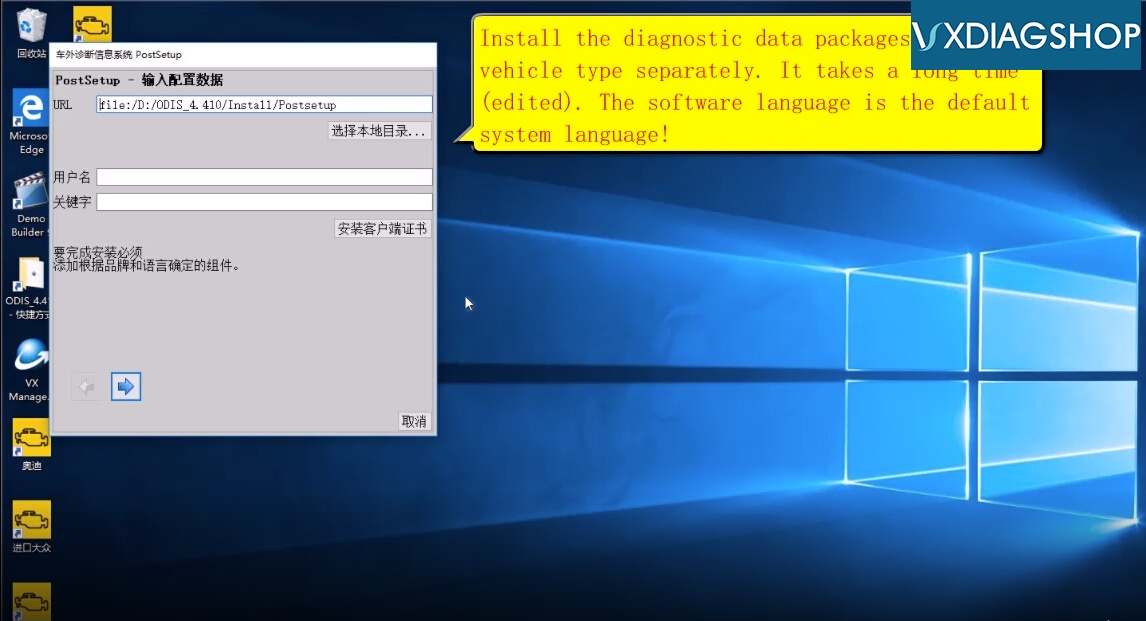
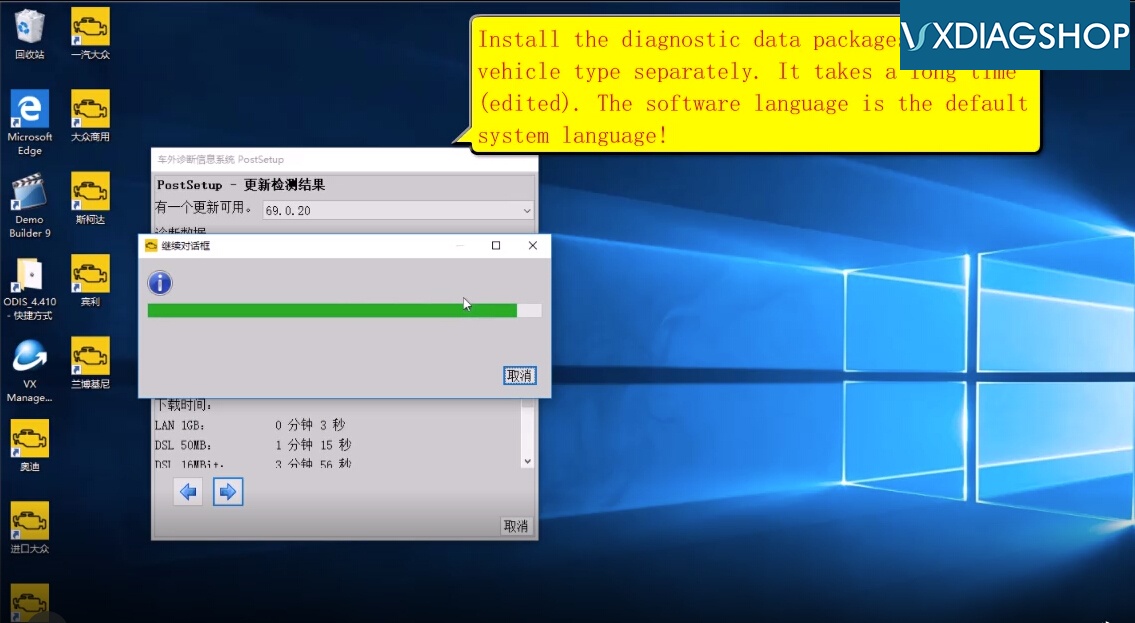
Install the diagnostic data packages of each vehicle type separately. It takes about 3 to 4 hours.
The software is default system language.
I.. register ODIS for Audi
register-vxdiag-odis-1

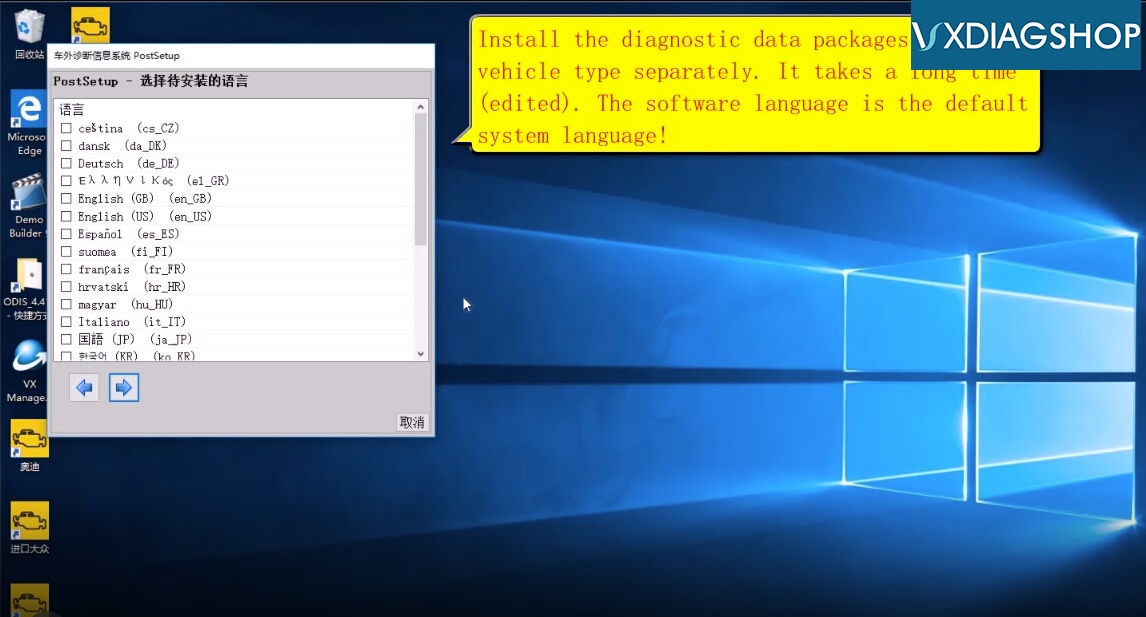
Select PostSetup language
register-vxdiag-odis-2
Downloading ODIS data
register-vxdiag-odis-3
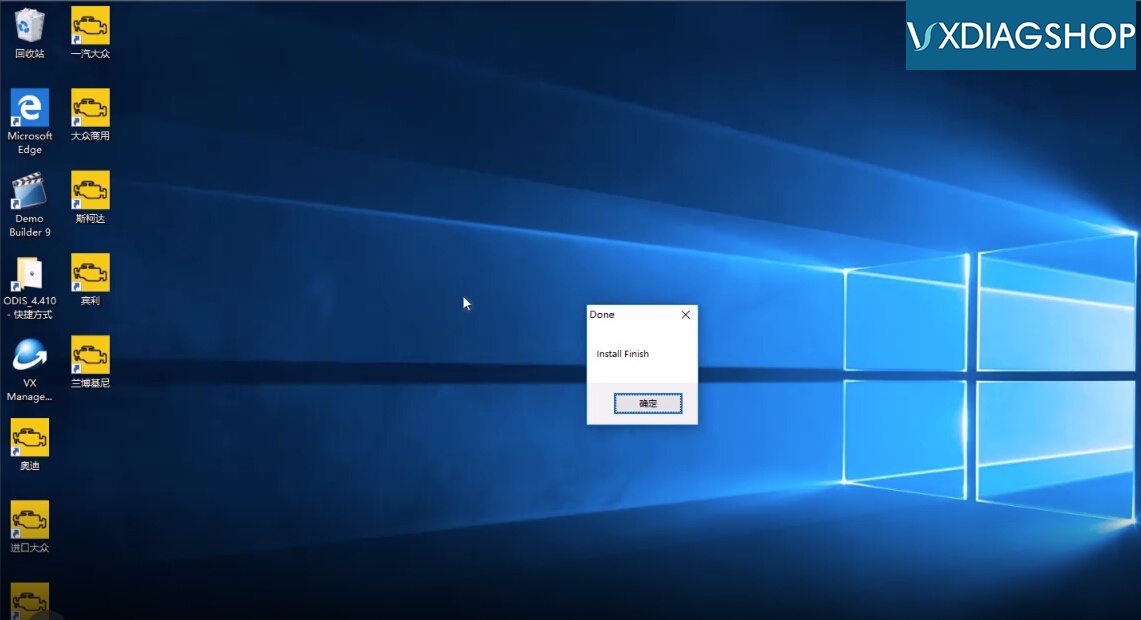
Register ODIS Audi software succeed
register-vxdiag-odis-4
register-vxdiag-odis-5
Register other software one by one until succeed.
Software is ready to use.
 vxdiag-vag-odis-5 vxdiag-vag-odis-6
 
Note:
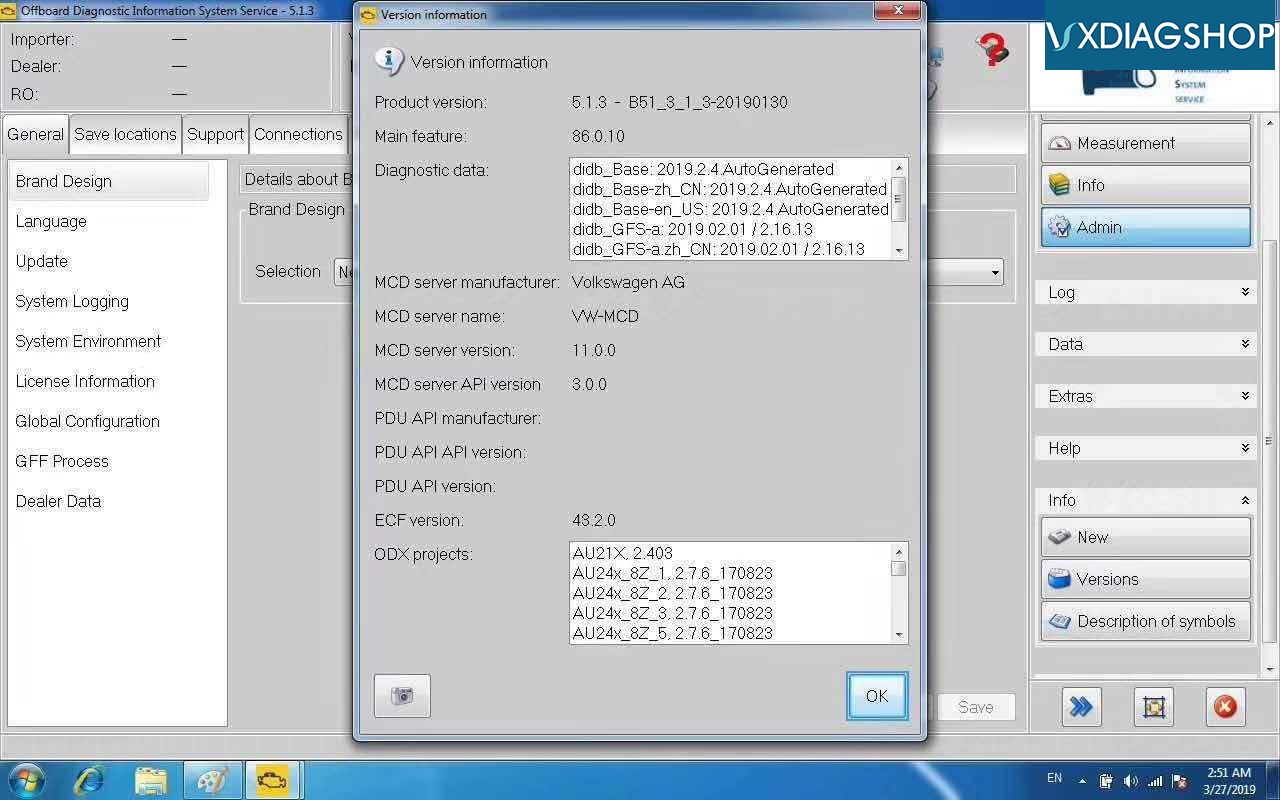
If you use vxdiag vcx nano 5054 for vw interface, you need to install software as well.  The current version ODIS 5.1.3 shares the same installation steps as 4.4.10.
[embed][/embed]
 
http://www.vxdiagshop.com/service/register-vxdiag-full-odis-software.html


2019/05/31

Free Download ODIS 5.1.3 for VXDIAG VCX NANO 5054

Good news!!! ODIS 5.1.3 software has been tested and verified working great with VXDIAG VCX NANO 5054, VCX Pro and VCX plus multi tools.

Software including:
ODIS Service:5.1.3
ODIS VW
ODIS Audi
ODIS Skoda
ODIS Bentley
ODIS Lamborghini
ODIS engineering postsetup 9.0.6
Elsawin 5.3
EKTA 8.0
odis-513-software
Multi-language: English/Japanese/Portuguese/Romanian/Korean/Dutch/Polish/Turkish/Spanish/ French/Italian/Croatian/Danish/German/Swedish/Finnish/Slovenian/Czech/Russian/Greek/Chinese
Operating system: Windows 7 32bit/64 bit and Windows 10


Free Download VXDIAG VAG ODIS 5.1.3 Software
https://mega.nz/#F!osxVlSaA!8MHyyShgwdeS01LqvRIcKA

ODIS 5.1.3 Update Feature:
– Estimated remaining times are shown for ECU flash operations.
– Diagnostic protocol contains interruptions of GFF sessions, extended measurement values, improved ECU communication view,used diagnostic hardware, connection type of diagnostic hardware, operating system, the hotfix used and submissions of support requests
– The measured value display has been improved.
– Documents in GFF are displayed in separate windows.
– One message box will be shown at the beginning of the test drive mode.
– GFF hotfixes can be integrated during diagnostic sessions.
– Danger messages have been revised.
– Stopping of diagnostic sessions may be interrupted.
– Automatic deletion of autosave diagnostic protocols after successful transmission.
– Selection of PassThru diagnostic hardware has been improved.
– ODIS Service Software update has been stabilized.


VXDIAG ODIS 5.1.3 Installation is similar as older 4.4.1 version, here's a video guide