Showing posts with label vxdiag vcx nano 6154. Show all posts

2024/09/10

Can VXDIAG ODIS Remove VAG Component Protection?

Can I use VXDIAG VCX SE 6154 ODIS S to remove Component Protection in VW, Audi and Skoda? Will it need online to access? This is a frequently asked question.


The answer is No. You cannot remove Component Protection with ODIS offline version.

You cannot remove CP with ODIS offline, only with GeKo account online.

VXDIAG is compatible with online login account. With GEKO online account you will able to remove CP.


1. Enter vehicle details in ODIS

VXDIAG ODIS Remove VAG Component Protection 1

2. Run full diagnostics

VXDIAG ODIS Remove VAG Component Protection 2

3. You should see the a few Test plans generated. Switch back to the ‘Control modules’ tab

VXDIAG ODIS Remove VAG Component Protection 3

4. You should see the ‘Information Electronics’ (005F) right click it

VXDIAG ODIS Remove VAG Component Protection 4

5. Right click and select Guided Functions

VXDIAG ODIS Remove VAG Component Protection 5

6. Click Run and let the tool complete its programming. The CP should be resolved after the run is complete.

VXDIAG ODIS Remove VAG Component Protection 6

www.vxdiagshop.com

2024/05/07

VXDIAG VCX NANO and Mahindra i-Smart Software

VXDIAG VCX NANO was tested working with Indican Mahindra i-Smart software by one of the VXDIAG’s users.

VXDIAG VCX NANO and Mahindra i-Smart  1

NOTE: We don’t provide Mahindra i-Smart software. Only shows the possibility of VXDIAG scanners.  You are at your risk.


The vcx nano he tested is a vcx nano 6154 odis for VAG. Other vcx nano/VCX SE should work as well.

VXDIAG VCX NANO and Mahindra i-Smart  2

VXDIAG VCX NANO and Mahindra i-Smart  3

Connect vcx nano with laptop and vehicle.

Need to find wiring diagram yourself.

Run Mahindra i-Smart software, select device as VXDIAG -J2534

VXDIAG VCX NANO and Mahindra i-Smart  4

VXDIAG VCX NANO and Mahindra i-Smart  5

VXDIAG VCX NANO and Mahindra i-Smart  6

VXDIAG VCX NANO and Mahindra i-Smart  7

www.vxdiagshop.com


2024/03/12

VXDIAG Update VW ODIS 6154 Driver in March 2024

VXDIAG vcx se 6154/vcx nano 6154 update new VW ODIS 6154 driver for Windows 10 on March 12th, 2024.
Version: 3.4.1.240308

VXDIAG 6154 Driver Update History

2024.03.11 V3.4.1.240308

Fixed ODIS 23.x versions error “Function not available” when performing adaptations on some models.
Fixed ODIS 23.x versions can not perform self-diagnostics tests on some models.


Go to VX Manager->Diagnostic

Install new driver.

VXDIAG Update VW ODIS 6154 Driver in March 2024


2024/03/05

How to Solve VXDIAG ODIS V23 Error Handling License?

Some vxdiag vcx se or nano 6154 users reported that they failed to activate ODIS-S V23 after getting the activation license key.

“Error handling the license. The license is invalid”

VXDIAG ODIS V23 Error Handling License 1

Solution:

That’s because they didn’t replace these two files to the correct folder.

Copy plugins and OffboardDiagLauncher files in 2.Patch & License folder

VXDIAG ODIS V23 Error Handling License 2

Copy two files and replace them on Win11ProW X64/Program Files/OS folder

VXDIAG ODIS V23 Error Handling License 3

It should be fine.

 https://www.vxdiagshop.com/service/vxdiag-6154-error-handling-license-solution.html


2023/10/16

How to Install ODIS-S V23 for VXDIAG VCX SE 6154?

Latest ODIS offboard diagnostic service software V23.0.1 was tested working with VXDIAG 6154 scanners.


ODIS 23.01 can be downloaded free here.

Keygen is not included. If need activation, buy the activation service here. It contains both ODIS-S V23 and ODIS-E V17. Both can be activated free for once.

https://www.vxdiagshop.com/wholesale/vw-audi-software-v23.html


Version: ODIS-S 230001.105.130

License: Included License Standalone and License for all brand
Brand: VAG (Audi, Bentley, Bugati, FAW-Volkswagen, Lamborghini, MAN, Seatm Volkswagen, Skoda)

Compatible device: VXDIAG VCX SE 6154, VXDIAG VCX NANO 6154 as well as other passthru devices (openport 2, vnci 6154a, godiag j2534 etc)

Operating system: Win10 or later O/S, RAM>4G. Win7 is not supported since this version.

Language: Multi-language


How to Install ODIS S V23 for VXDIAG 6154?


Video reference


Step 1: Install ODIS-S V23 Setup
Open ODIS-S 23.01 folder
Open OffboardDiagSetup-Service-23_0_1 folder
Extract OffboardDiagSetup-Service_VWMCD_23_0_1.rar
Install ODIS-S setup
Select setup language
Wait until the setup installation is completed

How to Install ODIS S V23 for VXDIAG 6154 1

How to Install ODIS S V23 for VXDIAG 6154 2

Step 2: Activate ODIS-S 23

Open 2.Patch& License folder
Copy all files from patch folder and paste them to Win11ProW X64/Program Files/OS folder

How to Install ODIS S V23 for VXDIAG 6154 3

How to Install ODIS S V23 for VXDIAG 6154 4

Run OffboardDiagnostic on desktop as administrator
It will ask for an activation key
Send the hardware ID to vxdiagshop.com, we will send you back the activation key, press Register

How to Install ODIS S V23 for VXDIAG 6154 5

Step 3: Install PostSetup

Open 2.ODIS-Service_update_23_0_1 folder
Open ODIS-Service_update-23_0_1-EU_20230711 file with Winrar
Create a new folder to E and extract file to disk E

How to Install ODIS S V23 for VXDIAG 6154 6

In PostSetup select from file:/E:/ODIS-Service_update_23_0_1_EU_20230711 folder
press Next (don’t need to input user name and password)

How to Install ODIS S V23 for VXDIAG 6154 7

Select PostSetup language
Wait until postsetup installation finished

How to Install ODIS S V23 for VXDIAG 6154 8

Step 4: Copy license
Copy the “license Standalone” folder to C:/ProgramData/OS

How to Install ODIS S V23 for VXDIAG 6154 9

How to Install ODIS S V23 for VXDIAG 6154 10

Copy shortcut icon in the “Desktop” folder to desktop

How to Install ODIS S V23 for VXDIAG 6154 11

How to Install ODIS S V23 for VXDIAG 6154 12

Step 5: Install Driver
Open 5.Driver folder
Install driver for the corresponding device.

How to Install ODIS S V23 for VXDIAG 6154 13

For example, install VX Manager driver for VXDIAG VCX SE 6154
Connect the device with the laptop via USB

How to Install ODIS S V23 for VXDIAG 6154 14

How to Install ODIS S V23 for VXDIAG 6154 15

Check if the device is well connected in the Device Manager
Run VX Manager, check device is detected
Install or update 6154 driver
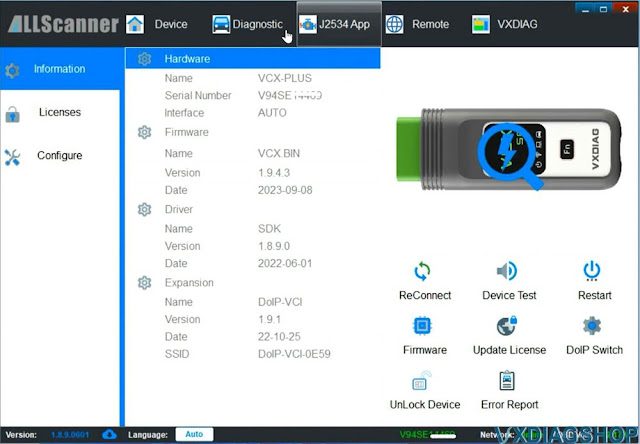
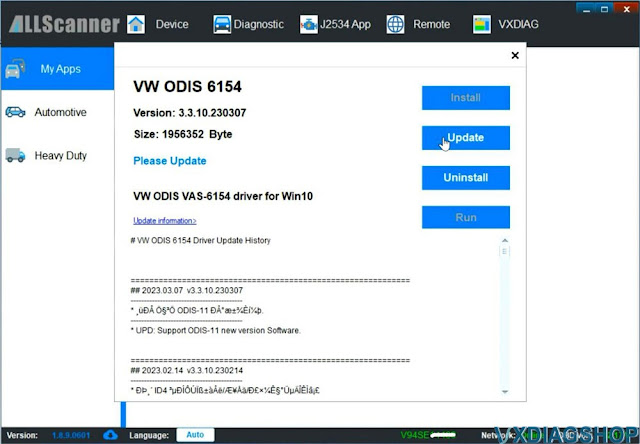
How to Install ODIS S V23 for VXDIAG 6154 16

How to Install ODIS S V23 for VXDIAG 6154 17

Step 6:
Run the corresponding software icon on the desktop, i.e VW ODIS-S V23

Odis V23 Software