Showing posts with label e-sys. Show all posts

2025/06/20

How to Solve BMW E-Sys “Failed to get CAFs for SWE” Error?


Problem:

Unable to code the ECU via E-Sys, the error “Failed to get CAFs for SWE” appears when trying to code.

Mini F55 Cooper S 2018, faulty ASD (Active Sound Design) ECU replaced with another used one.
ISTA shows an error that the ASD ECU is not coded.
E-Sys shows that ASD does not have CAFD.

BMW E-Sys “Failed to get CAFs for SWE” Error 1

There is no CAFD in the ASD ECU, but there should be.

In E-Sys, select ASD [3f] and click “Detect CAF for SWE”.

Error message:
Failed to get CAFs for SWE “swfl_…”
KIS error: The technical unit … could not be found in the KIS knowledge base.

BMW E-Sys “Failed to get CAFs for SWE” Error 2

Error Failed to get CAFs for SWE when clicking Detect CAF for SWE.


It is not possible to code the ECU.

Create an SVT Target in E-Sys, if possible with an I-Step (target) as close as possible to the I-Step (current) or higher than the I-Step of the used unit (see I-Step current in VCM).

It is clear that SWFL_000021D4… is suggested to be deleted from the ASD ECU, and SWFL_000029ED… loaded instead, and CAFD_00000F9B… added.

BMW E-Sys “Failed to get CAFs for SWE” Error 3

In SVT Target for ASD ECU it is suggested to load SWFL_000029ED… instead of SWFL_000021D4… and add CAFD.


In this case, the error “Failed to get CAFs for SWE” appears because E-Sys cannot find CAFD for SWFL_000021D4… and the current FA configuration, because for the current configuration, the ECU must have a different SWFL (there must be SWFL_000029ED… instead of SWFL_000021D4…).

To flash another SWFL into the ECU you need: ENET/ICOM/VXDIAG VCX SE, E-Sys (without launcher), PSdZData full, voltage source for programming.

Create a TAL and program the ASD to replace the SWFL and add CAFD to it (be sure to connect a voltage source to the machine to maintain voltage of at least 12.6 volts, at least for the duration of programming).

After programming, in the ASD module,  SWFL_000021D4… disappeared and SWFL_000029ED… and CAFD_00000F9B…appeared.

BMW E-Sys “Failed to get CAFs for SWE” Error 4

ASD was coded after SWFL change, CAFD appeared.

The ASD ECU is programmed, coded, works, no errors.


2023/08/10

VXDIAG BMW E-sys Plus 3.8 Asks for Verification Code?

Problem:

I got the VXDIAG VCX SE BMW with HDD. When run E-sys Plus 3.8 software, it asks doe a verification code. Where can i get the activation code?

VXDIAG BMW E-sys Plus 3.8 Asks for Verification Code 1

VXDIAG BMW E-sys Plus 3.8 Asks for Verification Code

Here is the clue.

E-sys Plus 3.8.1 is a bonus software. We don’t provide an activation key.

Contact bmwai.com or find yourself a keygen online.

For example:

E-sys Plus 3.8.1 with keygen

Paste hardware ID here and generate an activation key.

VXDIAG BMW E-sys Plus 3.8 Asks for Verification Code 3

*You are at your risk.

2023/02/09

VXDIAG BMW E-sys Asks for Certificate Solution

Problem:

I got the vxdiag vcx se BMW and ISTA+ 4.32 hard drive. When run E-sys software from laptop, it asks me download the certificate? Where to get the certificate?

VXDIAG BMW E-sys Asks for Certificate

Solution:

E-sys 3.35/3.38 verions require certificate. We don’t provide certificate for these versions.

Run E-sys marked red on the desktop. This version (3.40) does not require certificate.

VXDIAG BMW E-sys Asks for Certificate solution 1

VXDIAG BMW E-sys Asks for Certificate solution 2

2022/02/11

How to Connect E-sys for VXDIAG VCX SE BMW?

How-to: set up and connect BMW F series coding software E-sys with  VXDIAG VCX SE for BMW diagnostic scanner.

Setup requires USB connection

Make sure the USB cable is going all the way in.

connect-e-sys-with-vxdiag-vcx-se-bmw-1

Connect VCX BMW with vehicle and laptop via USB cable

connect-e-sys-with-vxdiag-vcx-se-bmw-2

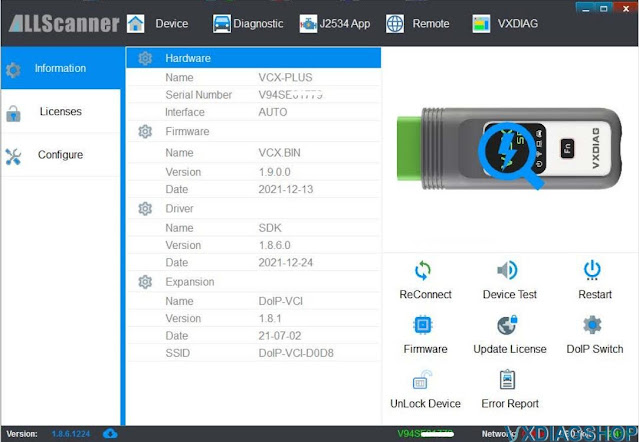
Open VX Manager to check device is well connected

connect-e-sys-with-vxdiag-vcx-se-bmw-3

VX Manager detects serial number, firmware driver version etc, vcx se bmw is well connected.

connect-e-sys-with-vxdiag-vcx-se-bmw-4

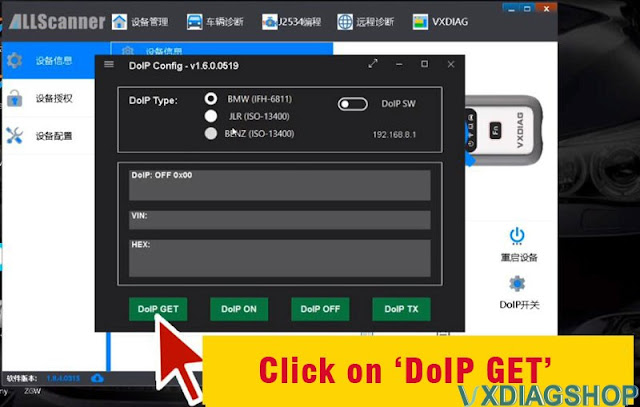
Turn on DoIP Switch

connect-e-sys-with-vxdiag-vcx-se-bmw-5

Press DoIP GET button

connect-e-sys-with-vxdiag-vcx-se-bmw-6

Press DoIP ON button

connect-e-sys-with-vxdiag-vcx-se-bmw-7

DoIP is turned on. Run E-sys software on the desktop.

connect-e-sys-with-vxdiag-vcx-se-bmw-8

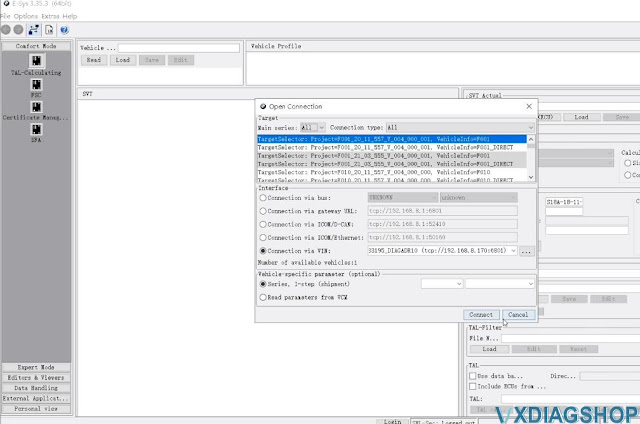
Press Connect icon

connect-e-sys-with-vxdiag-vcx-se-bmw-9

connect-e-sys-with-vxdiag-vcx-se-bmw-10

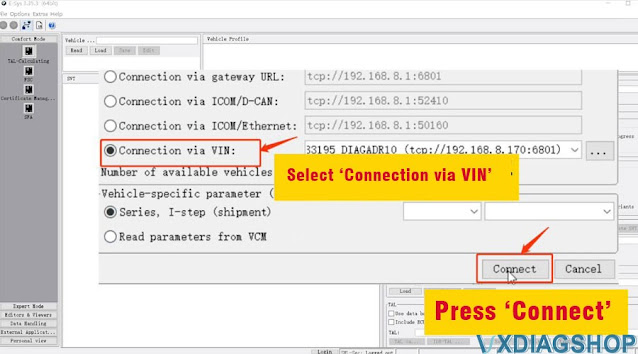
Select ‘Connect via VIN‘ and press ‘Connect‘

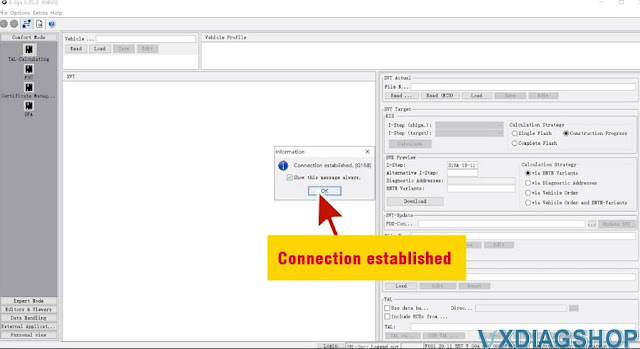
connect-e-sys-with-vxdiag-vcx-se-bmw-11

Connection established

connect-e-sys-with-vxdiag-vcx-se-bmw-12

Go to Read-FA- Activate FA

connect-e-sys-with-vxdiag-vcx-se-bmw-13

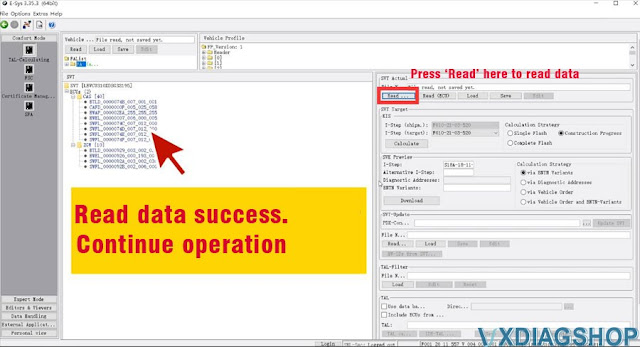
Press Read on the right SVT Actual column to read data

Read data success. Start coding your vehicle with E-sys software.

Video reference:

https://youtu.be/17RPah4tj7A

Read also: How to connect INPA software for VXDIAG VCX SE BMW?