Showing posts with label VXDIAG Benz Multi Tool. Show all posts

2019/02/24

Mercedes W221 ME9.7 SCN coding with VXDIAG Benz Multi Tool

Here's demo guide on performing Mercedes Benz 221 with control unit ME9.7 online SCN coding by using VXDIAG VCX Benz interface successfully. Here we go for step by step procedure.

Need:
Online SCN coding account
VCX Benz interface (VXDIAG Benz C6 or VXDIAG Multi diagnostic tool with Benz software)

One computer with win7 8 10

[embed]https://youtu.be/5EA_R0AQqT4[/embed]
Procedure:
Run Xentry newest version.
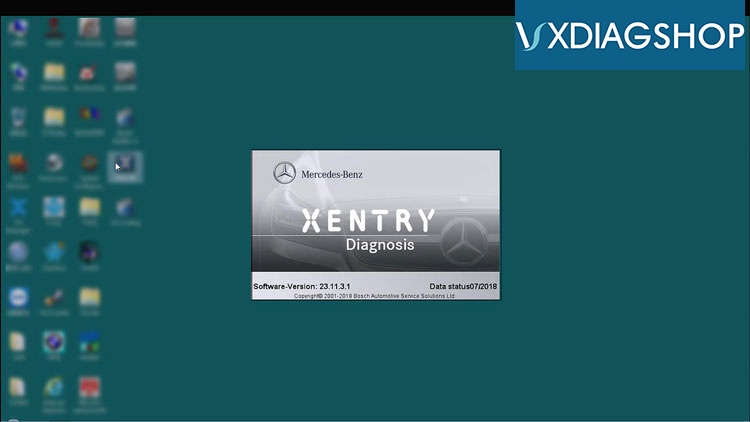
benz-221-me97-scn-coding-online-with-vcx-benz-02
Passenger cars W211 by automatically scanning.
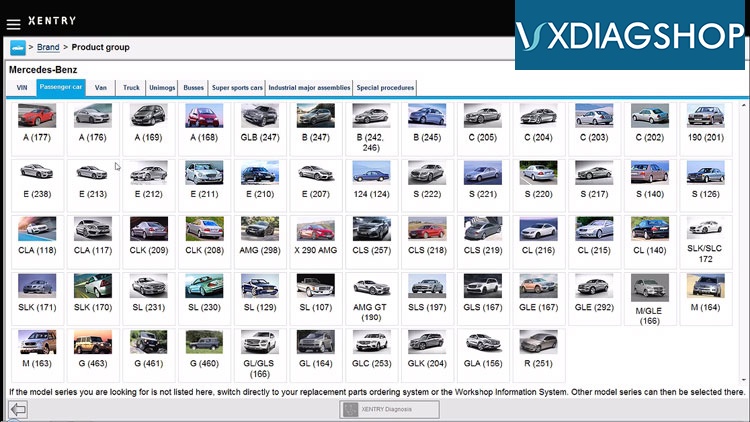
benz-221-me97-scn-coding-online-with-vcx-benz-03
benz-221-me97-scn-coding-online-with-vcx-benz-04
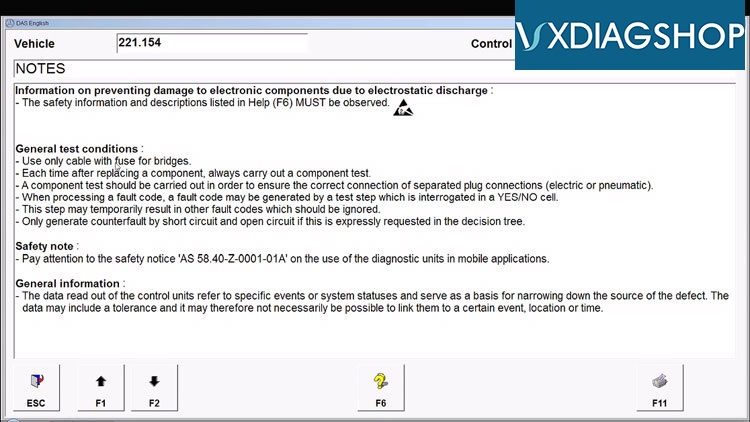
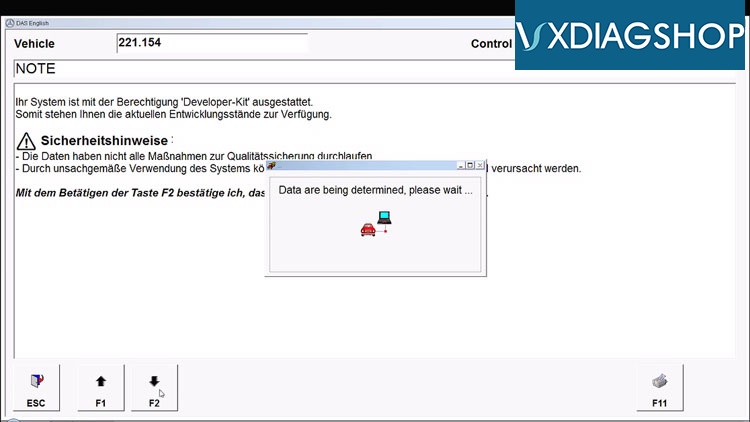
Press "F2" to determine the data.
benz-221-me97-scn-coding-online-with-vcx-benz-05
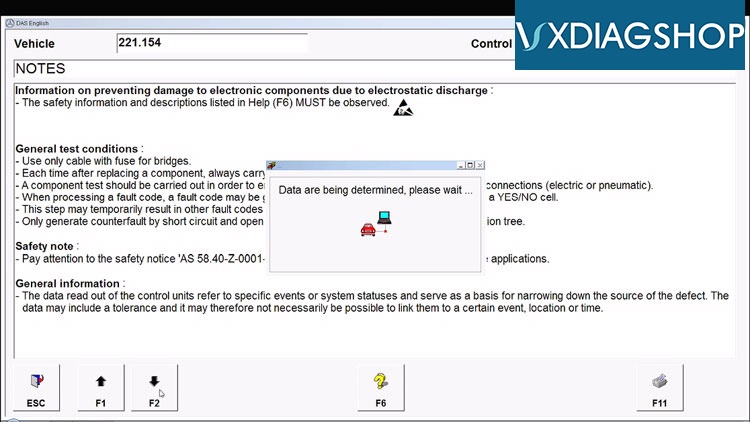
Again, click on"F2" to determine the data.
DAS is initialized communication layer.
All will be automatically done.
benz-221-me97-scn-coding-online-with-vcx-benz-06
Get the IMPORTANT NOTE on you should ensure enough power supply.
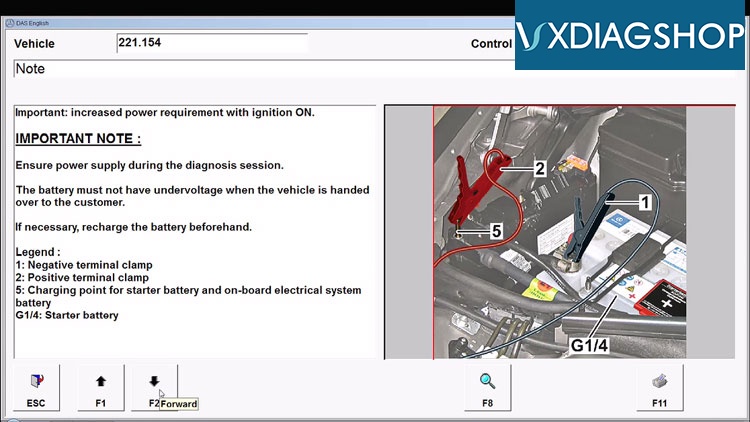
benz-221-me97-scn-coding-online-with-vcx-benz-07
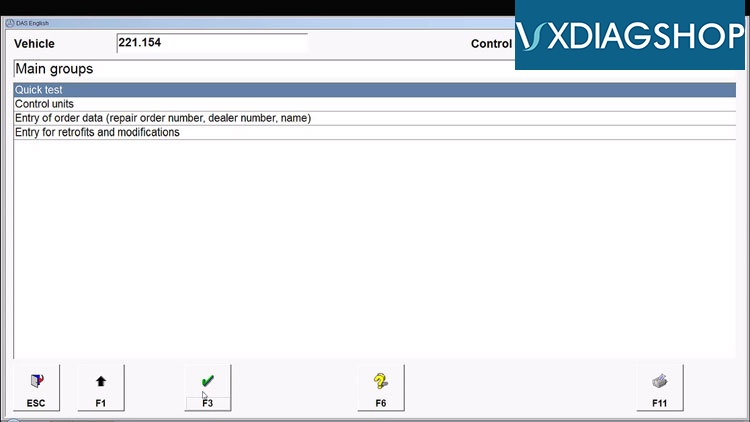
Click on "Quick Test" and "F3".
benz-221-me97-scn-coding-online-with-vcx-benz-08
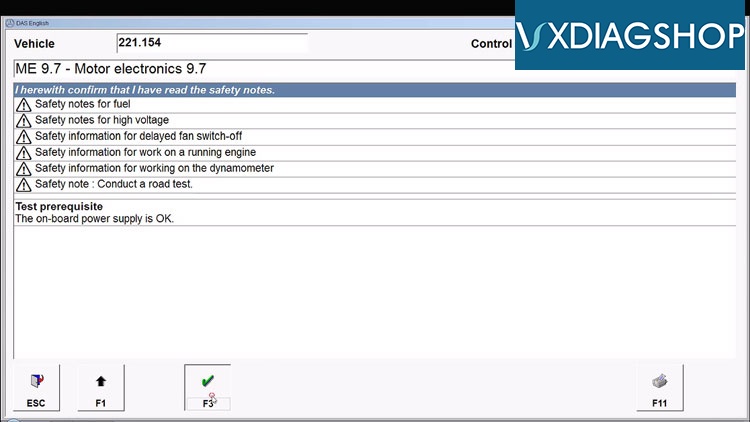
Click on "ME 9.7", then "F3" after reading the safety notes.
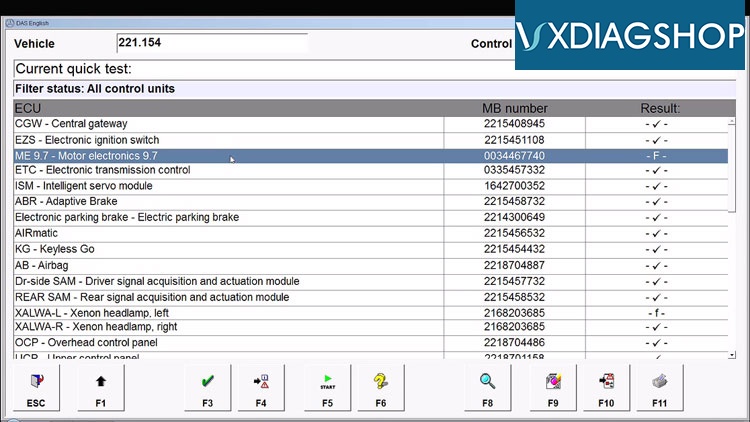
benz-221-me97-scn-coding-online-with-vcx-benz-09
benz-221-me97-scn-coding-online-with-vcx-benz-10
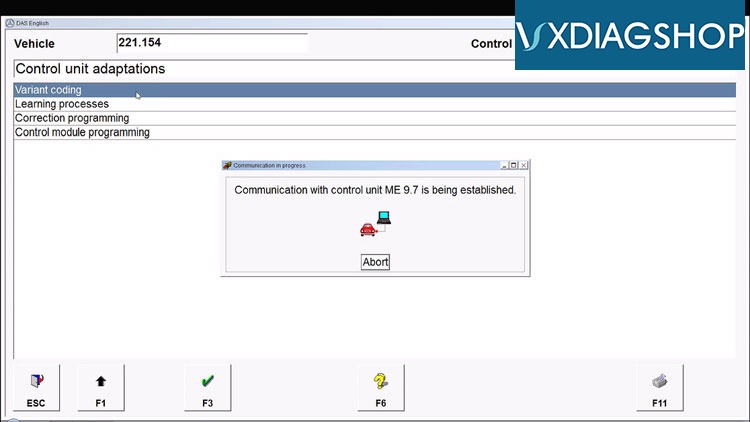
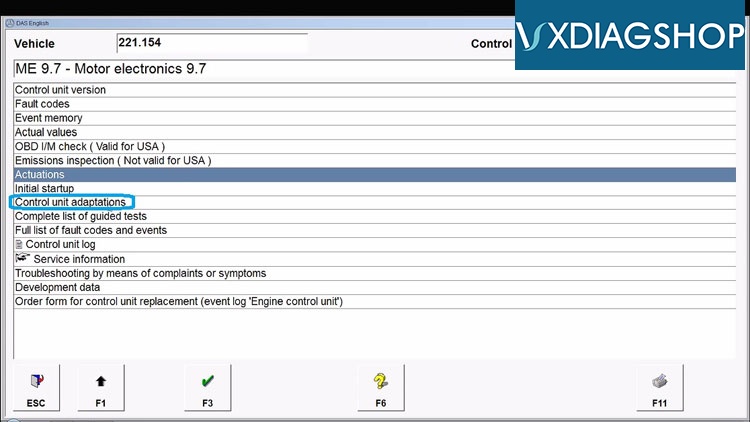
Click on "F1" to back to click on "Control Unit adaptation".
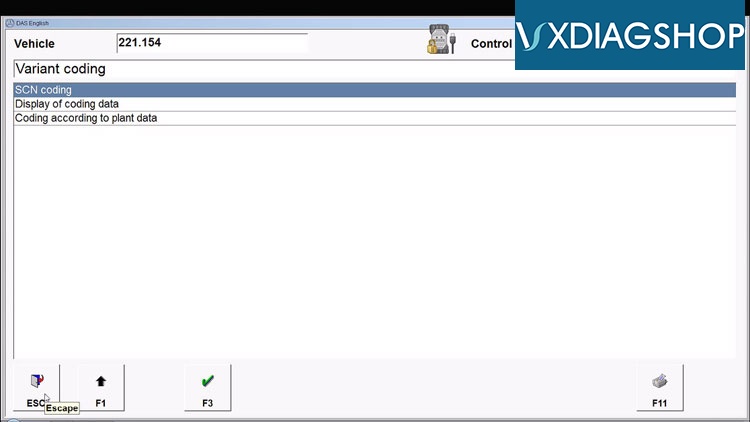
Choose "Variant coding".
benz-221-me97-scn-coding-online-with-vcx-benz-11
benz-221-me97-scn-coding-online-with-vcx-benz-12
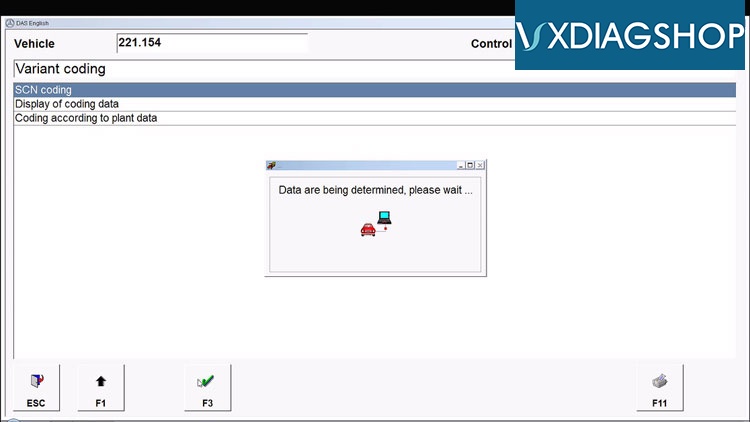
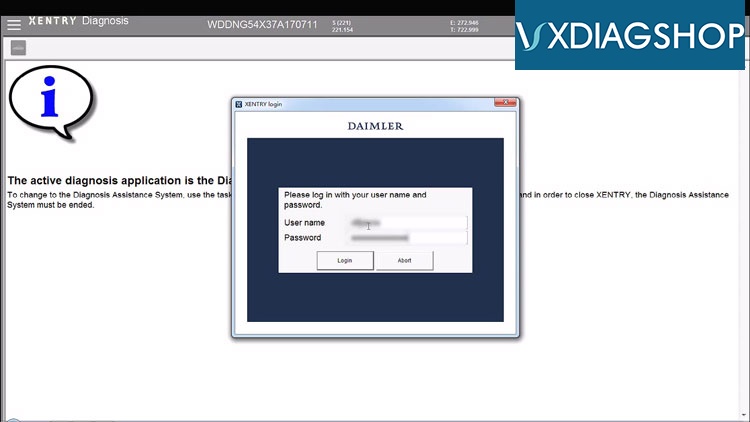
Click on "SCN coding" then "F3".
benz-221-me97-scn-coding-online-with-vcx-benz-13
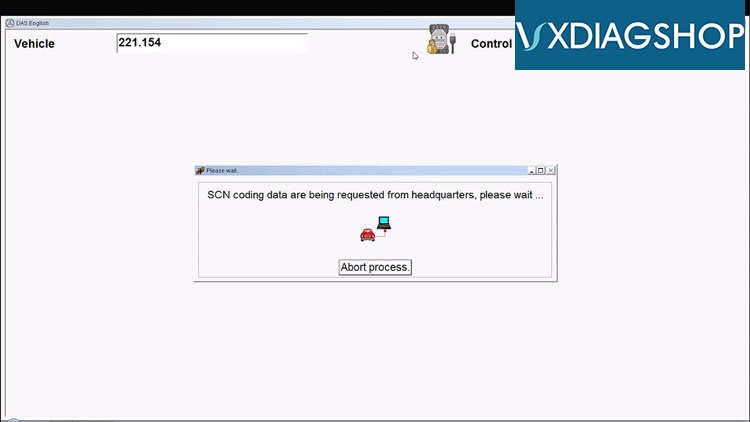
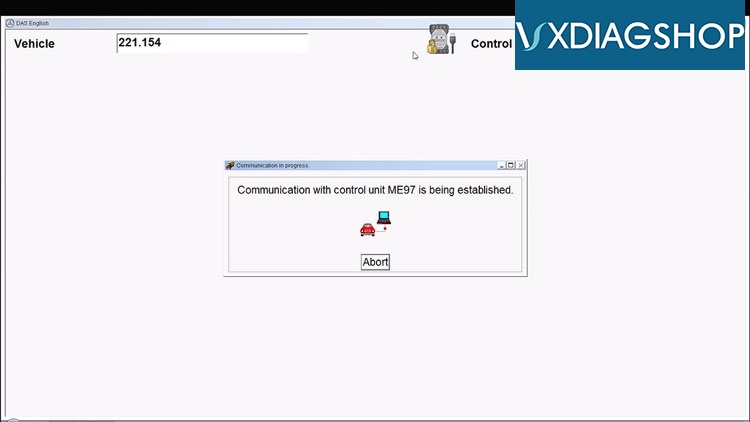
Login with your user name and password.
benz-221-me97-scn-coding-online-with-vcx-benz-14
benz-221-me97-scn-coding-online-with-vcx-benz-15
benz-221-me97-scn-coding-online-with-vcx-benz-16
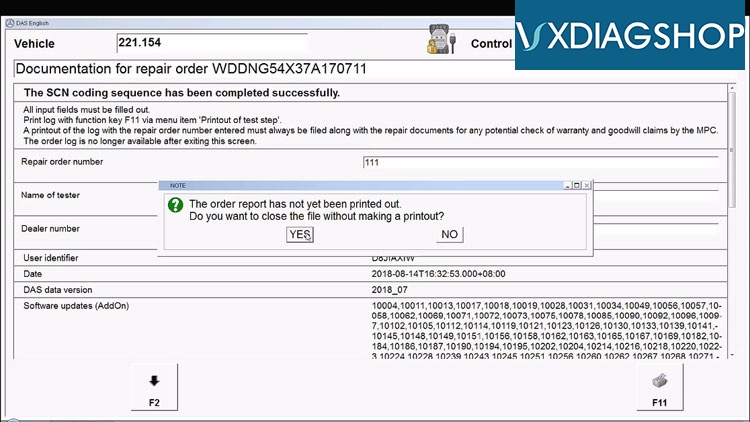
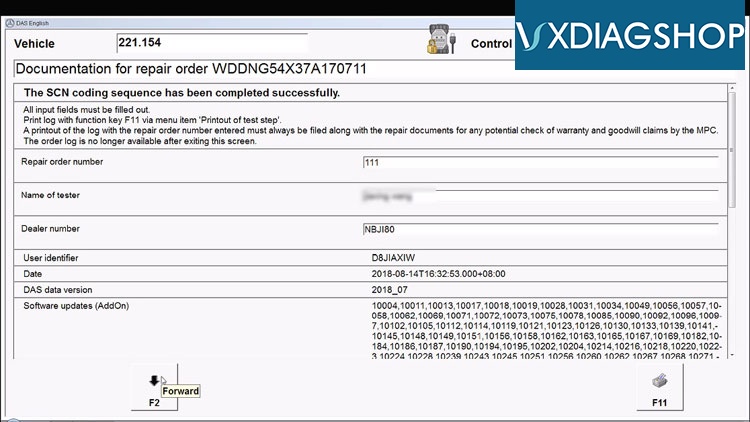
The 221 ME9.7 SCN coding has been completed successfully, choose "F2" to continue.
You can also choose print the test report.
benz-221-me97-scn-coding-online-with-vcx-benz-17
benz-221-me97-scn-coding-online-with-vcx-benz-18
Click on "ESC" to exit VXDIAG Benz software.
benz-221-me97-scn-coding-online-with-vcx-benz-19
Done.
www.vxdiagshop.com
2019/02/18

How to change Xentry Language of VXDIAG Benz Multi Tool

Here's the easy steps to change Xentry language of VXDIAG Multi tool and VXDIAG Benz C6 DoIP diagnostic systems.
change-vxdiag-benz-language-1
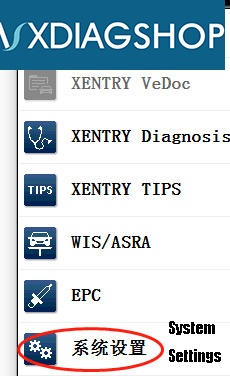
In Xentry software, press Setting icon
change-vxdiag-benz-language-2
Go to System Settings
change-vxdiag-benz-language-3
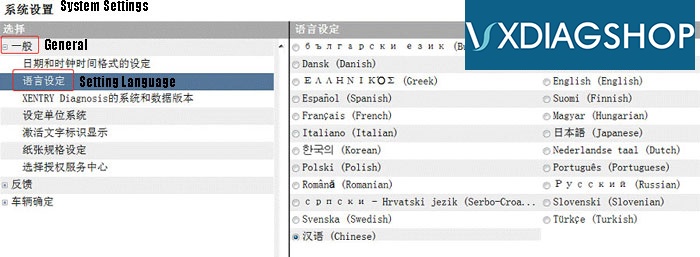
General->Setting Language
Select the language you desired
Multi-language available: Bulgarian/ Danish/ Greek/ Spanish/ French/ Italian/ Korean/ Polish/ Romanuan/ Serbo-Croatian/ Turkish/ Czech/ German/ English/ Finish/ Hyngarian/ Japanese/ Dutch/ Portuguese/ Russian/ Swedish/ Chinese
www.vxdiagshop.com

2018/12/10

How to Activate WIS EPC for VXDIAG Benz Multi Tool

How-to: register and activate WIS/EPC software for Allscanner VXDIAG Benz multi tool/VXDIAG Benz C6 diagnostic system.

Video guide:
[embed]https://youtu.be/Bogyy1iXO5s[/embed]

Procedure:
activate-vxdiag-wis-1
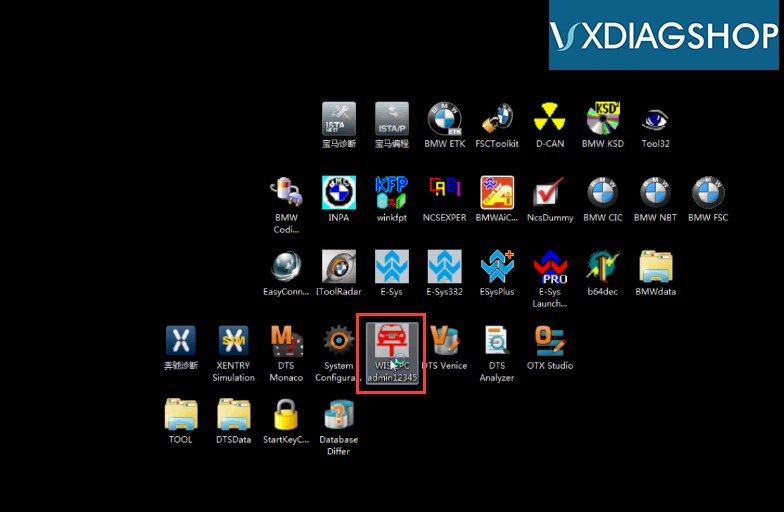
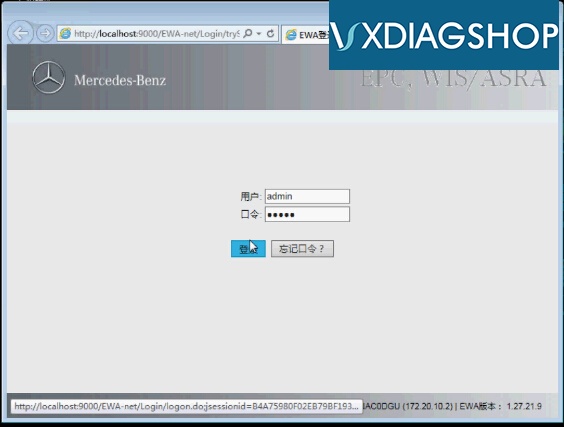
Run WIS EPC Admin 12345 on desktop
activate-vxdiag-wis-2
Login with user name: Admin and password
activate-vxdiag-wis-3
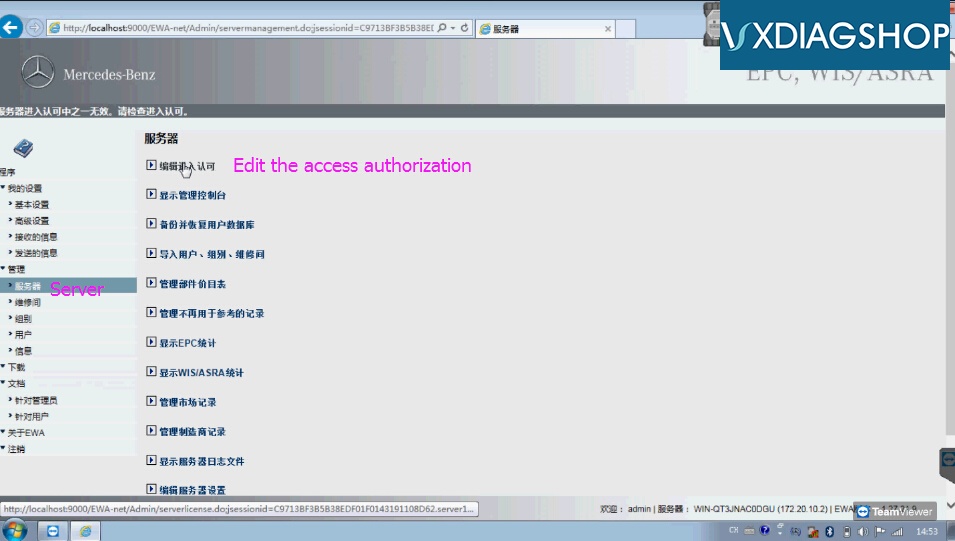
Select Server->Edit the access authorization
activate-vxdiag-wis-4
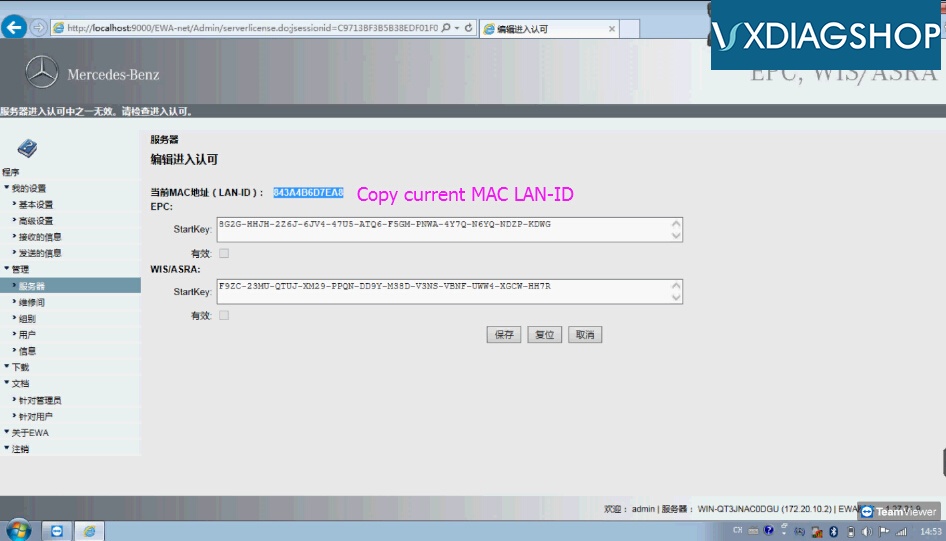
Copy the current MAC LAN-ID
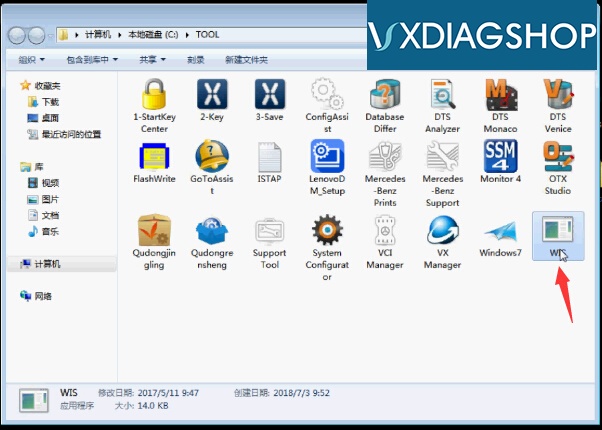
Open TOOL folder on desktop
activate-vxdiag-wis-5
Run WIS
activate-vxdiag-wis-6
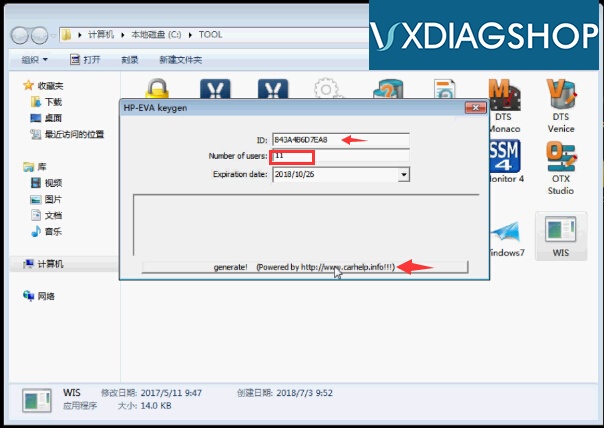
Copy LAN-ID here, enter number of users:11
Press Generate button
It will auto open windows browser, close the browser
activate-vxdiag-wis-7
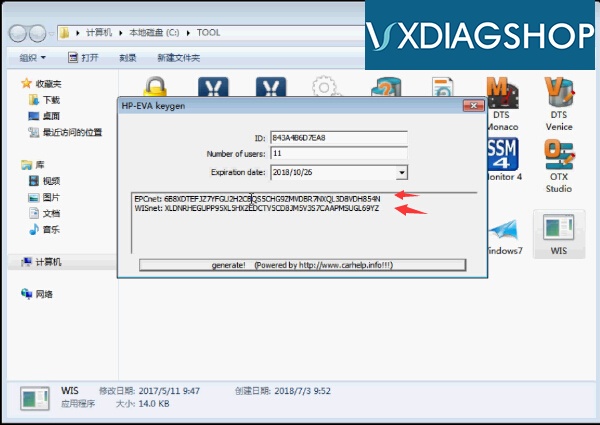
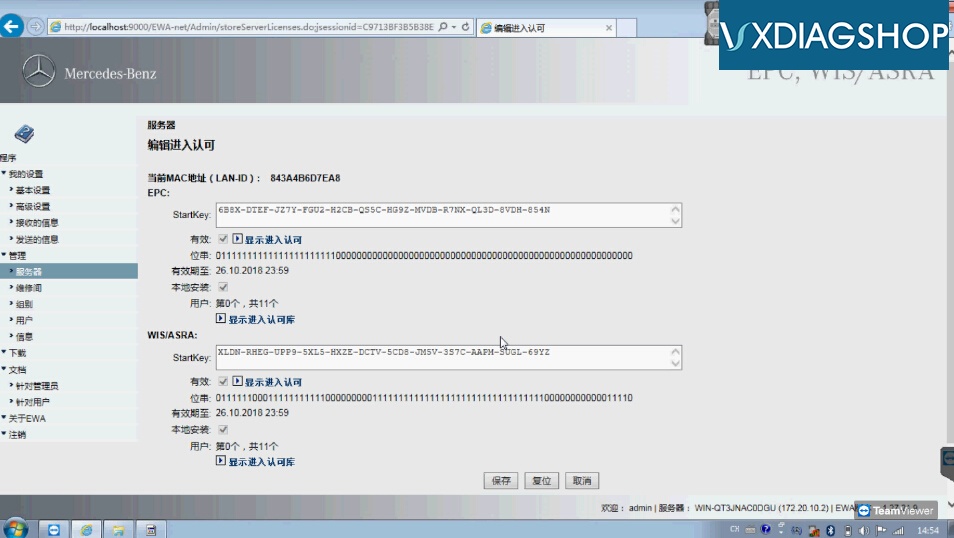
The EPC.net and WIS.net activation Startkey are generated successfully
activate-vxdiag-wis-8
activate-vxdiag-wis-9
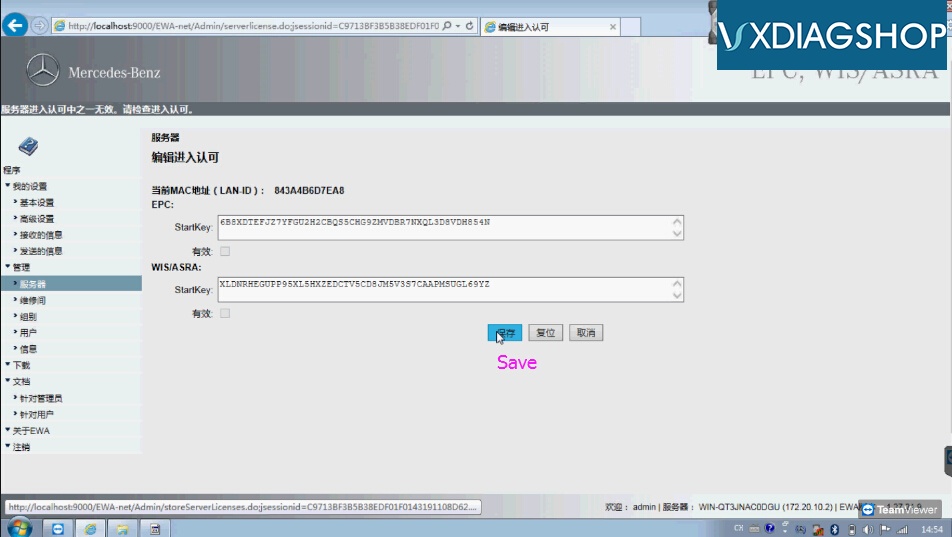
Copy and paste Startkey to corresponding area
Save StartKey
activate-vxdiag-wis-10
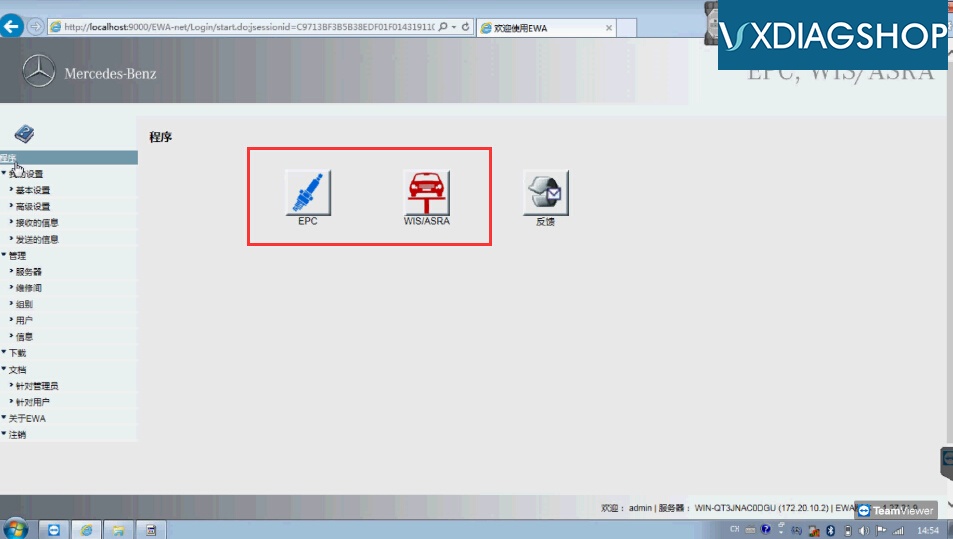
Activation success
activate-vxdiag-wis-11
EPC and WIS software is ready to use.

www.vxdiagshop.com

Article Source From:http://blog.vxdiagshop.com/2018/12/07/activate-wis-epc-for-vxdiag-benz-multi-tool/