Showing posts with label ford frds. Show all posts

2022/12/21

Ford F150 Corrupt Module Recovery by Forscan or FRDS

Vehicles: Ford F-150

Fault code: U-2100 initial configuration not complete

Cause: It is known to appear after software updates for those who have modified as-built data, but may also appear for owners with stock configurations. It can appear for various reasons, but the circumstance detailed below are becoming more common.

I’ve seen modules replaced because of persistent U codes (since they block updates). You can save some time by trying these steps first.

Some modules rewrite default as-built parameters after a particular update and they fail for whatever reason which then corrupts the memory.

If you are seemingly stuck with a persistent U-2100 or similar DTC after an OTA or FRDS update, it can be cleared but it takes more steps than usual.


Tool required:

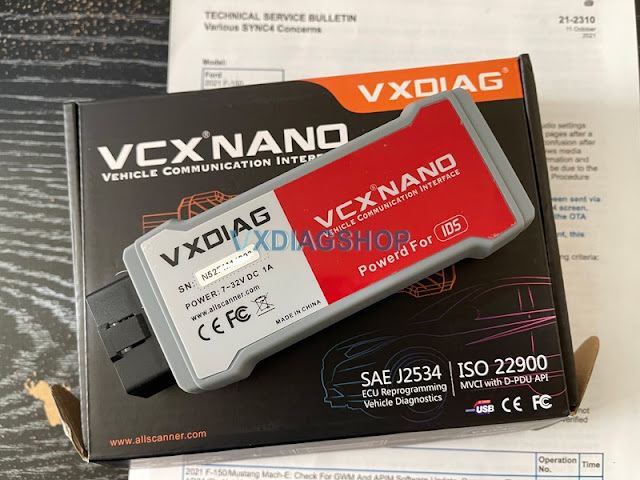
A Ford diagnostic interface that is compatible with Forscan/FRDS (VXDIAG VCX NANO Ford)

Forscan software or FRDS license


The ForScan Way:

As built configurations do not need to be returned to default to clear this error.

In ForScan go to > Configuration and programming> Module X Module Configuration (As Built) > Restore All (nothing changes) > Write All > Yes Force Rewrite all current values > Follow on screen steps.

After successful forced as built rewrite > back out of module configuration tab > go to service functions tab > under service procedures select the module(s) you rewrote > perform a module reset action > follow on screen steps.

When done > select the GWM > perform a module reset action > follow on screen steps.

This accomplishes is a forced rewrite of the custom as built data and forced reboot of the module with undesirable DTCs. Rebooting the GWM is simply to ensure the in-vehicle handshake is re-established before final steps.

In ForScan > back out of the service functions tab > go to DTC Tab > Reset DTC’s > follow on screen steps.

Initial configuration not complete DTCs for the target ECU will now disappear.

Note 1: Attempting to restore a known-good backup will fail due to updated checksum errors.

Note 2: Uncleared DTC’s will prevent future OTA’s from completing in target modules as per the WSM. Therefore, it is important to try to clear / resolve DTC’s when any are present so that future updates can complete.


The FRDS way:

Recovery PMI process
Connect FRDS to the vehicle and begin a session.
Physically disconnect FRDS from the vehicle then initiate PMI for the desired module.
Keep the FRDS session active.
Let FRDS fail to connect.
Reconnect the VCM to the OBD.
Instruct FRDS the original module is not available.
The PMI process will then proceed.
It will clear the fault by rewriting the original target ECU as if it is a new replacement.

After the FRDS session I suggest disconnecting all 12V vehicle power sources for a minute to ensure all modules reboot otherwise there may be a new DTC relating to disconnected ethernet.

Pro Power equipped vehicles have an extra 12V auxiliary battery under the passenger rear seat.

After the U code is cleared regular updates can resume as intended.

www.vxdiagshop.com

2022/10/08

Update Ford F150 75th Splash Screen by VXDIAG FDRS

Question: This is the Sync4 75th splash on a 2023 Superduty F150. Wondering if this can be used on the 2021-2022s, even with any latest OTA updates?’

Update Ford F150 75th Splash Screen by VXDIAG FDRS

That change is actually on the ’23s but 2022 models can get them.

The 75th splash

7D0-03-01

XXXX 24XX XXXX


You may need to be on Sync 4 build 22228 for it to be there (Only available for 22’s right now). If you’re not on that build you will likely need to wait till the OTA hits before the 75th screen will load.

As for the settings updates, I switched mine from the Raptor to #24 after updating the AS BUILT data as well. It then took 3-4 complete boot cycles of the system before it finally updated to show the 75th screen. I only found this out when I switched from the default to the Raptor screen it took that many cycles before it updated. Just a power cycle of the key/button doesn’t seem like it’s enough. I ended up getting out locking the truck and waiting for the dash to shut down before opening the truck door and hitting the start button.

If you get 22228 installed on a 21 Module you will lose the ability to get more APIM updates.


UPDATE: New 75 year splash screen works perfectly on my personal ‘22 Ford F-150 Lariat. However the update doesn’t do anything on my work take-home ‘21 Ford F-150 XLT; seems like it’s still on Sync Version 22192, which needs to be on 22238. Still waiting on the next OTA update or so to get up-to-date.
If you have a windows laptop all you need is this: VXDIAG VCX Nano Ford Diagnostic Tool with IDS Programming Tool

I got it and had to install a couple of drivers and then the FDRS software and I was good to go. It’s $50 for 48 hours of access to FDRS. I updated my trailer module. That was the only module that showed an update but worked perfectly.

2022/07/28

How to Fix 2021 F150 No Start After BCM Replacement?

Question: 

I purchased a flood damaged 2021 F150 with a bricked Body control module that could not be cloned. So far I’ve cleaned all Terminals, harnesses, replaced the body control module, Power control module, Passenger door control module, and Body control module C (fuse holder). After replacing those I programmed the 2 keys (original to the truck) to the new BCM using the prompts on the dashboard (without using Forscan) after that I configured all the modules to as built with Forscan.

I was able to get most functions of the truck to work but there is still no crank, no start. Is there something else I need to do to install the BCM? and can I do that with Forscan?

Solution:

PAT’S programming, you need Ford FDRS to do this.
You can skip the dealer and find a local auto locksmith with an Autel MaxiIM IM608 key programmer or similar. I replaced my BCM recently on 2019 F150. Used Forscan to program factory as-built data and an Autel IM608 to do the keys. Also, Ford IDS is for older vehicles (pre 2015). You would need Ford J2534 adapter (VXDIAG, VCM etc), FDRS with a dealer license to do PATS programming. There are people sell 1 day, 1 week and 1 year licence to FDRS with PATS access.
So just to be clear:

1) Erase all keys
2) Program 2 new key/fob combo with remote start

Just follow the programming it will ask for each key to be inserted and will complete after both keys have been successfully programmed.
Read also:

2022/02/20

VXDIAG Ford and FDRS Update F150 2021 APIM Module

The Ford F-150 2021 sync 4 apim update has to be done in the truck it is for. You cant do like sync 3 and just use any update. The manifest is vin specific and there are other things it looks for that only the truck its done in has.

If you get the FDRS two day pass and the unit mentioned about you can do the apim update yourself. Also you can update all the modules that need to be updated. The 1.4.0 update was a TCU update. 1.6.0 was gateway and 1.7.1 was the apim 21146 update. 2.1.0 was gateway 2.1.1 was gateway 2.3.0 is apim.

As of now the 21146 APIM update for Job 1 trucks is available for manual install in FDRS. It’s there in the software update tabs. It has to be completed through USB though. Sometimes it can take a while for the update to kick in and also have to make sure you don’t pull the usb until you get a completed message.

You will need a J2534 pass-through interface that connects FDRS to your truck. We use the VXDIAG VCX Nano for Ford. It’s a cheaper version of more expensive interface but gets the job done! You can read details how to set it up to work with FDRS here.

VXDIAG Ford and FDRS Update F150 2021 APIM Module 1

FDRS is only required until the USB is created. Once you have a USB you can drop FDRS. You do not need a scan tool or FDRS for the USB to kick off. People used that tool successfully on their truck and things went very well. They updated many modules successfully using it. It also works with forscan so its a great option for those with F150 2021 because you can use it for everything rather than needing a couple different tools.

The APIM update process is rather easy. Connect your interface to your truck and laptop running FDRS, open FDRS, read VIN from the vehicle. Once done, click on Toolbox tab. You should see all modules on your left hand side. Click on APIM (if its green), on the right-hand side you should see all options you can perform on this module. If there is update available, you should see it in this section. Once you initiate the APIM update, just follow the on-screen instructions, its pretty straight forward from there!

VXDIAG Ford and FDRS Update F150 2021 APIM Module 2

Also very important:

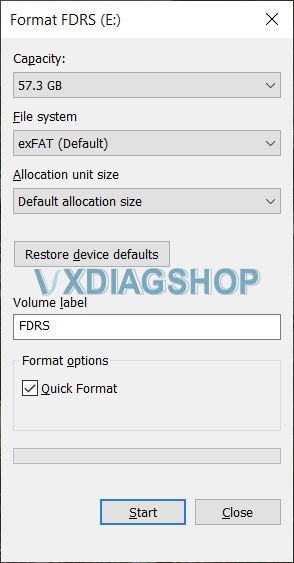
Make sure you format your USB flash drive to exFAT with default allocation size.

VXDIAG Ford and FDRS Update F150 2021 APIM Module 3

2022/01/06

VXDIAG VCX NANO Ford FDRS Review on Mustang


I'll mention another possible scan tool that might work with  FDRS apart from VCM2/3. It's called the VXDIAG VCX Nano, only costs $95.

https://www.vxdiagshop.com/wholesale/vxdiag-vcx-nano-for-ford-mazda-2-in-1.html

Warning: The software sets off a bunch of trojan warnings with your antivirus software. These could be real or false alarms (I'm not sure), but I would recommend you use it on a laptop you don't really care about that doesn't have any sensitive files.

When you get it, do not install any software from the CD, download the install files directly from the manufacturer here: VX Manager

Install the software, update the device firmware to latest, and install the J2534 driver. If you have install issues, disable your antivirus and restart. After things are installed the VXDIAG will show up as a device in FDRS. After you're done updating your vehicle, I recommend uninstalling the software and doing a full antivirus scan to remove the leftovers.

I've used this successfully to update my other Ford vehicles via FJDS, which is an older version of this software, nothing bad happened. FDRS also appeared to work, it connected to my 2021 Mustang Mache-E and read modules, etc., but my vehicles aren't supported by FDRS so there was nothing I could "do" with the software. Since both programs use J2534 interfaces, I'm fairly confident VXDIAG will work for Mach-E updates in FDRS but I don't have my Mach-E yet to check 100%. If somebody wants to try, this would be cheaper than the Mongoose interface.

I'll also emphasize the importance of having a good battery power supply connected properly during the update process (connect to the negative body, not the battery). The Mach-E will draw 25-30 amps during the updates and you must maintain the voltage or the updates will fail and possibly brick your modules. Especially important for the longer IPMA and RFA updates. If you don't have a charger or supply that is quite big enough, use jumper cables to connect a fully-charged large battery that has a reserve capacity (RC) of at least 180 minutes. Make sure everything is fully recharged before doing the IPMA update (the laptop should be connected to power too for the 1.5 hour update).

 www.vxdiagshop.com