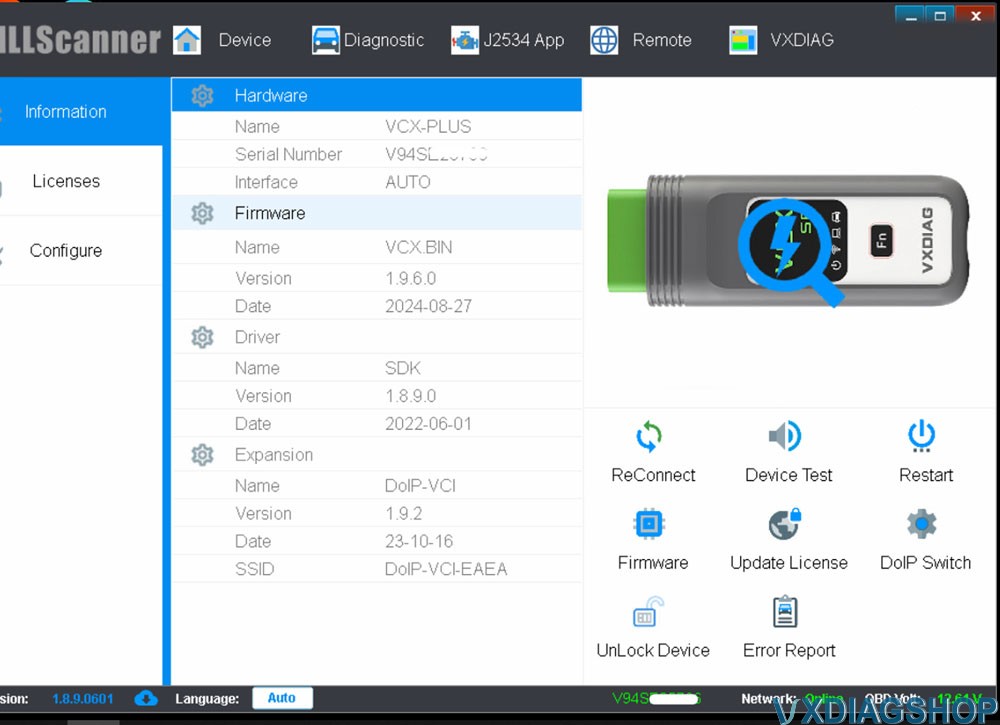
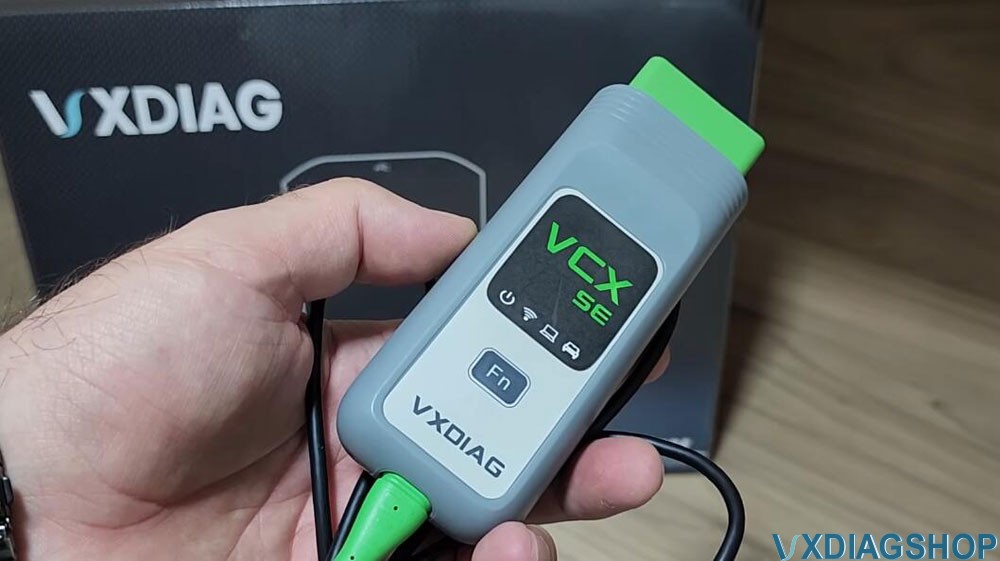
Activated both SDD and Pathfinder DOIP licenses on myVXDIAG VCX SE JLR DoIPdevice. The VX Manager detects the tool, and I’m logged into my online Pathfinder account. However, it failed me when attempting to download data from the server. I receive the error:
1. DOIP Support (Diagnostics Over Internet Protocol)
To connect to new models via a certificate, you need a scanner with DoIP. VCX PLUS and VCX SE support DoIP protocol. They will read cars from 2004 to today.
In order for these scanners to be able to diagnose new models, you need to add a diagnostic certificate (Zenzefi) to Xentry.
VCX PLUS: SupportsDOIP v1 and v2, support high-bandwidth Ethernet connections and are capable of handling complex diagnostic tasks, especially for high-end vehicles, including ECU programming and software updates.
VCX SE: only supportsDOIP v1, it can handle most diagnostic tasks. It’s a cost-effective option for daily vehicle maintenance and basic diagnostics while still being capable of certain advanced tasks.
VXDIAG DoIP Option 1 vs Option 2:
1. Option 1: Standard DoIP Implementation
Option 1 generally refers to a standard DoIP implementation based on Ethernet and IP protocols. This means the DoIP protocol runs over conventional Ethernet architecture, suitable for basic diagnostic tasks with relatively low bandwidth requirements. This implementation is widely used in earlier vehicle models or basic diagnostic systems, primarily for functions like reading and clearing fault codes, real-time data streams, sensor data, and other essential tasks.
2. Option 2: High-Bandwidth DoIP Implementation
Option 2 refers to a high-bandwidth DoIP implementation, usually utilizing 10Gb Ethernet or higher bandwidth networks, and supporting more complex protocols and architectures. This implementation can handle higher data transfer rates, suitable for more complex diagnostic tasks like ECU programming, software updates, and intricate fault diagnostics.
Both options are part of the DoIP standard and are used depending on the specific requirements of the diagnostic task and the available infrastructure.
2.Voltage Range
VCX PLUS: Operates between7V–32V.
VCX SE: Works between9V–36V, but the user notes that voltage fluctuations can damage the device.
3. WiFi
VCX PLUS also has WiFi and it also works stably.
VCX SE is compact, well assembled, stable WiFi
4. Build Quality & Design
VCX PLUS:
The VCX PLUS is well made, very solid and heavy.
Comes in aheavy-duty aluminum case(weighs ~3 kg).
The box is also very high quality and has thick plastic.
Featuresrubber paddingfor shock resistance.
IncludesLAN cable, USB adapter, and a detailed manual.
VCX SE:
Morecompact and lightweight.
Still well-built withdurable plastic casing.
5. Connection Speed & Reliability
TheVCX PLUS connects fasterto newer vehicles due to enhanced protocol support.
TheVCX SE is slowerbut still reliable for older models (2004–2020).
6. Vehicle Coverage
Both device works withMercedes-Benz C6and other brands with license (Porsche, Honda, Ford, Mazda, Toyota, etc.).
One of our customers boughtVXDIAG VCX SE Benzscanner for the smart 450 diagnostic. It came with 2.5″ SATA SSD with all the programs on it. I don’t have a compatible laptop with 2.5″ SATA port so I bought an 2.5″ SATA to USB adapter. The problem is that he can’t boot from the external drive on his laptop.
Solution:
Method 1:
Copy the data of the SATA solid disk to his own computer hard disk.
Method 2:
Connect SATA SSD with a SATA to USB converter, and connect the other end to laptop via USB port.
Set in computer BIOS to UEFI from USB.
It is recommended to buy a second-hand laptop for these HDD/SSD, such asLenovo T440P I7. It is tested very stable with these hard disks.
I havevxdiag vcx se BMWscannerrunning with the HDD without a laptop. When I plug the HDD (MSATA) into my laptop and start ISTA, it asks for the hardware ID. How do I solve this problem?
Solution:
You cannot solve this problem with HDD.
You are using the wrong BMW software HDD.
The activation depends on the seller of HDD.
Don’t use 3rd party BMW software HDD with VXDIAG device.
Use the dedicatedVXDIAG BMW HDD. It does not require a hardware ID.
Contact WHATSAPP:0086-18064450969 if need the VXDIAG BMW HDD separately.
The current version goes to Diagnostic 4.39.20, Programming 68.0.800.